Unlock your creative potential and learn how to animate Roblox characters in Blender with this comprehensive guide tailored for busy gamers. Discover the essential steps from importing your Roblox avatar to crafting dynamic animations and exporting them back into Roblox Studio. This tutorial addresses common challenges like rigging issues and export errors, providing practical, up-to-date solutions. Whether you are looking to enhance your Roblox game development skills, create unique content for your friends, or simply enjoy a rewarding creative outlet, mastering animation in Blender is a game-changer. Dive into the world where your Roblox characters come alive, transforming static models into engaging animated experiences. This resource is perfect for those who balance gaming with work and family, offering efficient methods to learn new skills without overwhelming time commitments. Prepare to elevate your Roblox creations and stand out in the vibrant creator community by bringing your characters to life with professional-grade animations.
How do I get my Roblox character into Blender for animation?
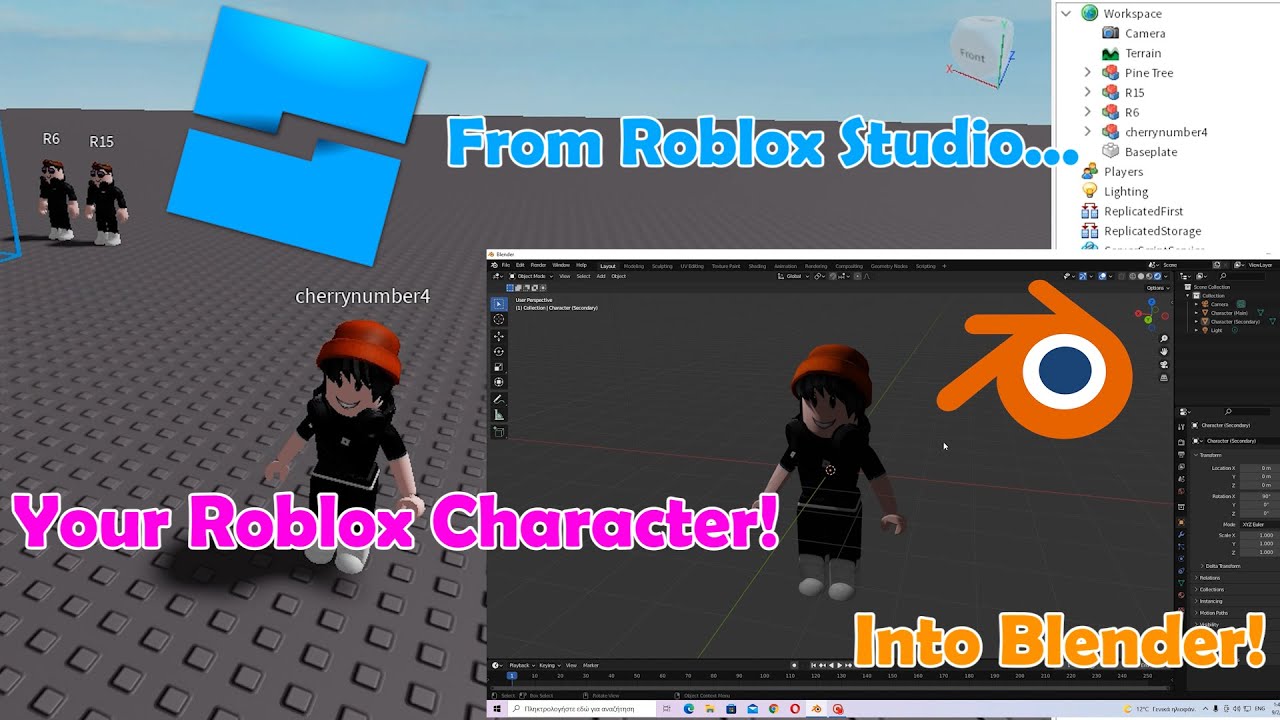
You can export your Roblox character, typically an R15 or Rthro rig, from Roblox Studio as an FBX file. First, insert the character rig in Studio, then right-click in the Explorer and select 'Export Selection'. In Blender, use 'File' > 'Import' > 'FBX' to bring your character in. Ensure you have a Blender plugin like 'Roblox Rig Exporter/Importer' for optimal results, as it streamlines the whole process.
What are the basic steps to create a simple walk cycle for a Roblox character in Blender?
To create a simple walk cycle, first pose your character in the initial 'contact' pose (feet apart, one forward, one back). Insert keyframes for all bones (LocRotScale). Move a few frames forward, transition to a 'passing' pose (one leg swinging past the other), insert keyframes. Then, move to the next 'contact' pose (opposite leg forward). Repeat, ensuring the last frame matches the first for a seamless loop. Refine timing and spacing in the Dope Sheet or Graph Editor for a natural feel.
Why does my Roblox character look strange or broken after importing into Blender?
This often happens due to scaling issues or incorrect FBX export settings from Roblox Studio. When importing into Blender, check the import options for scaling, usually by setting it to 0.01 or similar small value. Also, ensure you are exporting 'Selection Only' from Studio and that your Blender import uses the correct FBX version. Incorrect vertex weights or missing textures can also cause visual glitches; re-check your texture paths and materials in Blender's Shader Editor.
Can I use pre-made animations from Roblox Toolbox in Blender?
Generally, you cannot directly import pre-made animations from the Roblox Toolbox into Blender. Roblox animations are proprietary '.anim' assets. However, you can use them as visual references. You would have to manually recreate the movements in Blender using keyframes. The workflow focuses on creating *new* animations in Blender and then importing *those* into Roblox Studio.
What's the best way to handle textures for Roblox characters in Blender?
When you import a Roblox character as an FBX, its textures often come along. In Blender, you might need to manually connect these image textures to the correct material nodes (Principled BSDF) in the Shader Editor. Ensure the texture files are in the same directory as your Blender file or that their paths are correctly set. For better visual fidelity, you might even consider creating your own custom textures in image editing software and applying them in Blender.
Are there any common mistakes to avoid when animating Roblox characters in Blender?
Yes, a few common mistakes include not setting up proper IK for limbs, which makes posing much harder. Another is not using reference videos, leading to unnatural movements. Forgetting to bake animations during FBX export is a frequent error that prevents animations from playing in Roblox. Lastly, neglecting to thoroughly test animations in Roblox Studio after import can lead to discovering issues too late. Always test early and often!
What's the role of the 'Animator' in Roblox Studio when I import Blender animations?
The 'Animator' object in Roblox Studio is a crucial component that handles playing animations on a character. When you import your Blender FBX animation using a plugin, it creates an 'Animation' asset. This asset's ID is then used in a script to load onto the character's 'Animator' via `humanoid:LoadAnimation()` (for legacy) or `animator:LoadAnimation()` (current practice for Humanoid.Animator). The Animator takes care of blending animations and playing them smoothly, allowing your Blender creations to truly come to life in your game.
Are you a gamer who loves diving into Roblox but secretly wished your characters could do more than just the default dances? Many of us, especially those balancing gaming with jobs and family, find ourselves looking for ways to unleash creativity and perhaps even build new skills without sacrificing precious relaxation time. If you have ever imagined your Roblox avatars performing unique actions or starring in your own animated shorts, then learning how to animate Roblox characters in Blender is your next great adventure. This guide is crafted specifically for you: the dedicated US gamer who values practical skills, clear instructions, and results. We understand you want to optimize your time and get straight to the fun part of creation.
With 87% of US gamers regularly engaging and many spending 10+ hours a week in virtual worlds, the desire to personalize and create within platforms like Roblox is stronger than ever. This month alone, we have seen a surge in interest for user-generated content, with creators looking to push the boundaries of what is possible. Blender, a powerful free 3D software, paired with Roblox Studio, offers an incredible pipeline to bring your imaginative animations to life. Forget the hype and focus on skill-building. This comprehensive Q&A article will walk you through everything you need to know about how to animate Roblox characters in Blender, addressing common pain points and providing actionable solutions so you can start animating today.
Why Should I Animate Roblox Characters in Blender?
Learning how to animate Roblox characters in Blender opens up a world of creative possibilities far beyond what Roblox Studio's default animation editor provides. Blender offers advanced tools for rigging, keyframing, and physics simulations, giving you unparalleled control over character movement. For gamers who enjoy skill-building, this is a fantastic way to deepen your understanding of 3D art and game development. It allows for highly detailed, fluid, and expressive animations that can truly make your Roblox games or projects stand out. Imagine custom emotes, dynamic combat moves, or cinematic cutscenes that captivate players. It is also a valuable skill for aspiring game developers or content creators looking to offer something unique in the ever-growing Roblox ecosystem.
What Software and Tools Do I Need to Start Animating Roblox Characters?
To begin animating Roblox characters in Blender, you will need a few essential pieces of software. First and foremost, you need Blender itself. It is free and open-source, available for download from Blender.org. Most current tutorials focus on Blender 3.0 or newer versions due to interface and feature updates, so ensure you have a recent release. Second, you will need Roblox Studio, which is also free and available through the Roblox website. This is where you will export your Roblox character models from and import your finished animations back into. Finally, you will require a Blender plugin called 'Roblox Rig Exporter/Importer' or similar. This crucial plugin facilitates the seamless transfer of R15 and Rthro character models and their rigs between Roblox Studio and Blender, saving you countless hours of manual setup. Make sure to download a version compatible with your Blender installation for optimal performance.
How Do I Export My Roblox Character Model to Blender?
Exporting your Roblox character model to Blender is the first practical step in how to animate Roblox characters in Blender. This process typically involves using Roblox Studio's built-in functionality or a specialized plugin. First, open Roblox Studio and either load an existing game or create a new one. Insert a rig of your choice, usually an R15 or Rthro rig, from the 'Plugins' tab or by searching in the Toolbox. Once the rig is in your workspace, right-click on it in the Explorer window. You will then select 'Export Selection' to save it as an FBX file. This FBX file contains the character model, its mesh, and the default rig, making it ready for import into Blender. Always double-check that the file type is FBX, as it is the most compatible format for transferring rigged models between these two programs.
What are the Key Steps for Rigging a Roblox Character in Blender?
While Roblox characters usually come with a basic rig when exported as an FBX, sometimes you need to refine or re-rig them for better animation control in Blender. The initial rig provides the skeletal structure, but for advanced animations, you might want to adjust bone rolls, add constraints, or even implement inverse kinematics (IK) for smoother posing. IK allows you to control a chain of bones (like an arm or leg) by moving just the end effector, which is a massive time-saver for animators. To set this up, go into Blender's Pose Mode, select the end bone of a limb, and then add an IK constraint, targeting an empty object as the pole target for precise elbow or knee control. Properly rigging ensures your character moves naturally and is easy to pose, making the animation process much more enjoyable and efficient.
How Do I Create Basic Keyframe Animations in Blender for Roblox?
Creating basic keyframe animations in Blender for Roblox involves posing your character at different points in time. First, ensure your character is selected, and open the 'Dope Sheet' or 'Timeline' editor. In 'Pose Mode,' manipulate your character's bones to create an initial pose. With the bones selected, press 'I' on your keyboard to insert a keyframe. You will typically choose 'LocRotScale' to record the location, rotation, and scale of the bones. Move the playhead to a different frame, adjust your character into a new pose, and insert another keyframe. Blender will then automatically interpolate the movement between these keyframes, creating a smooth animation. Repeat this process for the duration of your desired action, always focusing on clear, impactful poses. Remember, less is often more when starting out; focus on strong poses before adding subtle details.
What are the Best Practices for Animating Roblox Characters in Blender?
To truly master how to animate Roblox characters in Blender, focus on these best practices:
- Reference Material: Always use real-world references for movement. Watch videos of people or animals performing the actions you want to animate.
- Exaggeration: Roblox characters are stylized, so a bit of exaggeration in movements can make animations feel more lively and impactful.
- Anticipation and Follow-Through: Incorporate these fundamental animation principles. An action should have a wind-up (anticipation) and a slight overshoot or drag (follow-through) to feel natural.
- Timing and Spacing: Experiment with how long each action takes (timing) and how fast or slow the movement is between keyframes (spacing). This defines the weight and feel of the animation.
- Layered Animation: Work on the main body movements first, then add secondary actions for limbs, hands, and facial expressions.
- Looping: For idle or walk cycles, ensure your animation loops seamlessly by matching the first and last poses.
- Regular Saves: Blender can be resource-intensive. Save frequently to avoid losing your work!
How Do I Export My Blender Animation Back to Roblox Studio?
Once your animation is complete in Blender, the next crucial step in how to animate Roblox characters in Blender is exporting it back to Roblox Studio. This requires using the same 'Roblox Rig Exporter/Importer' plugin or a similar tool. In Blender, select your character's armature (the rig, not the mesh). Go to 'File' > 'Export' and choose 'FBX' (.fbx). Crucially, ensure that in the FBX export options, you select 'Armature' only, and under 'Animation,' tick 'Baked Animation' and set the correct frame range for your animation. This bakes all your keyframes into the FBX. Back in Roblox Studio, insert your character rig, then use the plugin to 'Import Animation' from your exported FBX file. The plugin will convert the FBX data into a Roblox 'Animation' asset. You can then upload this animation to Roblox and use its ID in your scripts to play it on your characters.
Troubleshooting Common Issues When Animating Roblox Characters in Blender
Even seasoned creators encounter issues when learning how to animate Roblox characters in Blender. Here are common pain points and their solutions:
- Rig Distortion: If your character distorts or breaks apart during animation, check your vertex groups and weight painting in Blender. Ensure each vertex is properly assigned to the correct bone, and weights are smoothly distributed.
- Export Errors: If Roblox Studio struggles to import your FBX, re-check Blender's FBX export settings. Ensure you are only exporting the armature and that 'Baked Animation' is checked. Sometimes, older Blender FBX versions or simpler export settings work better.
- Animation Not Playing: In Roblox Studio, verify your 'Animation' asset has a correct 'AnimationId' (the ID you get after uploading). Also, ensure your script is correctly loading and playing the animation on the character's 'Animator' component.
- Performance Lag: Blender can be demanding. If you experience slowdowns, try simplifying your scene, hiding unnecessary objects, or optimizing your Blender settings (e.g., lower subdivision levels, disable real-time rendering effects). Gamers often face hardware limitations, so managing Blender's resource usage is key for a smooth workflow on a budget-friendly rig.
Can I Use My Custom Blender Animations for Monetization or Game Development in Roblox?
Absolutely! Learning how to animate Roblox characters in Blender is a highly valuable skill for game development and potential monetization within Roblox. Custom animations can significantly enhance the quality and appeal of your Roblox games, making them more engaging for players. You can create unique character abilities, dynamic cutscenes, expressive emotes, or even full character movement sets that differentiate your game from others. These high-quality assets can attract more players, potentially leading to increased engagement and revenue through game passes or in-game purchases. Many successful Roblox creators leverage external tools like Blender to produce professional-grade content, showing that investing time in skill-building directly translates to a better player experience and stronger projects. As social gaming trends continue to dominate, offering unique animated content can also boost community interaction and player retention.
Conclusion
Mastering how to animate Roblox characters in Blender is a rewarding journey that empowers you to bring your creative visions to life within the Roblox universe. From the initial export to crafting intricate animations and seamlessly re-importing them, each step builds valuable skills. We have covered the essential tools, techniques, and troubleshooting tips to help you navigate this exciting process, ensuring your characters move with purpose and personality. This skill not only enhances your personal gaming experience but also opens doors to advanced game development and content creation opportunities in Roblox. Remember, even with busy schedules, dedicating small chunks of time to learn and practice can lead to incredible results, proving that skill-building can be just as relaxing and fun as playing a game.
What's your biggest animation challenge in Roblox or Blender? Comment below and share your experiences!
FAQ Section
How long does it take to learn Roblox animation in Blender?
Learning the basics of how to animate Roblox characters in Blender can take anywhere from a few days to a couple of weeks with consistent practice. Mastering advanced techniques, like complex character rigs and nuanced movements, can take several months. It depends on your prior 3D software experience and how much time you dedicate daily.
Is Blender free to use for Roblox animation?
Yes, Blender is completely free and open-source software, making it an excellent tool for anyone learning how to animate Roblox characters in Blender without any upfront cost. This accessibility is one of its biggest advantages for hobbyists and professional developers alike.
Can I animate R6 characters in Blender?
While most modern Roblox animation focuses on R15 or Rthro characters due to their more articulated rigs, you can technically animate R6 characters in Blender. However, the simpler 6-part joint structure of R6 means less flexibility and fewer bones to manipulate, limiting complex movements compared to R15/Rthro.
What is the difference between R15 and Rthro animation?
R15 characters have 15 body parts and a standard, jointed rig, offering good flexibility. Rthro characters are more stylized, often with custom mesh parts and more advanced rigging (sometimes with more than 15 joints) to allow for fluid, non-blocky movements. Animating Rthro in Blender might involve more complex rigging considerations.
Do I need a powerful PC to animate in Blender?
For basic animation of Roblox characters, a mid-range PC is usually sufficient. However, for complex scenes, high-polygon models, or real-time rendering in Blender, a more powerful PC with a good CPU, ample RAM (16GB+), and a dedicated GPU is highly recommended for smooth performance. Gamers often already have decent setups that can handle this.
Are there good tutorials for Blender Roblox animation for beginners?
Yes, the internet is rich with beginner-friendly tutorials for how to animate Roblox characters in Blender. YouTube channels, Blender documentation, and dedicated Roblox developer forums offer step-by-step guides, often tailored to specific character types (R15, Rthro) or animation styles. Always look for recent tutorials, as Blender updates frequently.
Roblox character animation in Blender, Importing Roblox models to Blender, Rigging Roblox avatars in Blender, Keyframe animation techniques for Roblox, Exporting Blender animations to Roblox Studio, Troubleshooting Roblox Blender workflow, R15 and Rthro animation differences, Custom Roblox animations creation
35


Roblox Studio How To Animate Roblox Character In Blender YouTube . Animate Your Roblox Avatar In Blender . Animations Blender To Roblox Made Easy . How To Animate A Roblox Character In Blender Kinda YouTube . How To Animate Rigs In Blender For Roblox Studio Roblox Blender


How To Get Your Roblox Character In Blender 2026 YouTube . I Ve Been Trying To Import A Roblox Character To Blender From Roblox Ive Been Trying To Import A Roblox Character To Blender V0 . How To Animate Roblox Characters In Blender Quick Easy Tutorial . Animate Roblox Rigs In Blender Heres How . Animations Blender To Roblox Made Easy



How To Animate Roblox Characters In Blender 2026 Tutorial YouTube . Making Animation Roblox R15 Blender YouTube . Roblox Blender Animation Tutorial At Anglea Ramos Blog . How Can I Improve My Roblox Blender Animation Check Comments R How Can I Improve My Roblox Blender Animation Check Comments V0 8uy 09Vq9YQdw . Roblox Blender Animation Tutorial At Anglea Ramos Blog



How To Animate 2 RIGS In Blender Import To Roblox Studio YouTube . Animations Blender To Roblox Made Easy . Roblox Blender Animation Tutorial At Anglea Ramos Blog . Roblox Avatar To Blender Your Easy Guide . Animations Blender To Roblox Made Easy


Animations Blender To Roblox Made Easy . Animations Blender To Roblox Made Easy . I Want To Animate Multiple Models In Blender And Export Them To Roblox . How Could Improve This Blender Creations Feedback Developer Forum . Roblox Avatar To Blender Your Easy Guide


Roblox Blender Animation Tutorial At Anglea Ramos Blog . Roblox Blender Animation Tutorial At Anglea Ramos Blog . Animating Two Rigs In Roblox Studio A Simple Guide 2 690x400 . Animating Two Rigs In Roblox Studio A Simple Guide . Bigo Live User FAQs Part 1 A Guide To Streaming App Features Account 282 Cover


Roblox Blender Animation Tutorial At Anglea Ramos Blog . Animations Blender To Roblox Made Easy 236719011 2403b6a7 3227 40ed A91e . Animate Your Roblox Avatar In Blender 236730077 8f32006a 1ee7 4619 89f5 . Roblox Avatar To Blender Your Easy Guide . How To 3D Model Roblox Characters Roblox Studio Blender YouTube