Navigating the world of Roblox on Xbox can be incredibly fun, but for many US gamers aged 20-45, connecting with friends through in-game chat often presents a puzzling challenge. You're trying to coordinate a build, strategize in a mini-game, or just hang out and talk with your squad, only to find the chat features aren't as straightforward as they are on PC or mobile. This comprehensive guide is designed to cut through the confusion, offering clear, actionable steps on how to get chat on Xbox Roblox. We'll delve into account settings, privacy configurations, parental controls, and platform specific nuances, ensuring you can unlock the full social potential of your Roblox experience. Understand why certain restrictions exist, how to adjust them responsibly, and discover the best practices for safe and engaging communication, helping you stay connected with the 87% of US gamers who prioritize social interaction in their play. Get ready to chat freely and enhance your Roblox adventures with this essential guide.
How do I enable text chat for my account on Roblox Xbox? First, ensure your Roblox account is 13+ and verified. Then, navigate to your Xbox console settings, go to 'Account' > 'Privacy & online safety' > 'Xbox privacy' > 'View details & customize' > 'Communication & multiplayer'. Set 'You can communicate outside of Xbox Live with voice & text' to 'Everyone' or 'Friends'. My voice chat on Xbox Roblox isn't working; what's the first thing I should check? The very first thing is to verify your Roblox account has 'Spatial Voice' enabled and your age is verified (13+ with ID). Then, check your headset's physical connection and ensure it's not muted. Finally, confirm your Xbox Live privacy settings allow voice communication. Can parents control their child's Roblox chat settings specifically on Xbox? Yes, parents can utilize both Xbox Family Settings and Roblox's Parental Controls. On Xbox, they can adjust the child's communication permissions. On Roblox, a Parent PIN can be used to set account restrictions and manage chat settings. Both platforms offer robust tools for parental oversight. Is it possible to chat with friends on PC or mobile while I'm playing Roblox on Xbox? Absolutely! Roblox supports cross-platform play. As long as your Xbox Live and Roblox privacy settings permit communication, you can text chat with friends on PC or mobile within the same Roblox game. For voice chat (Spatial Voice), all players must have it enabled and be in a supported experience. Why does my Roblox account age matter for chat features on Xbox? Your Roblox account age is critical. Accounts under 13 are restricted to filtered, pre-approved phrases for safety, while 13+ accounts gain access to free text chat and the option for age-verified Spatial Voice. These restrictions are universally applied across all platforms, including Xbox. What Xbox privacy settings impact my ability to use chat in Roblox? The key Xbox privacy settings are found under 'Account' > 'Privacy & online safety' > 'Xbox privacy' > 'Communication & multiplayer'. Specifically, 'You can communicate outside of Xbox Live with voice & text' and 'Others can communicate with voice, text, or invites' directly control your ability to chat in Roblox. They should be set to 'Everyone' or 'Friends' for full functionality. Are there any workarounds if Roblox chat is completely disabled for me on Xbox? If Roblox chat is completely disabled due to age restrictions or strict parental controls, the primary workaround involves using a separate device like a phone for Discord or another communication app. This allows you to talk to friends while playing on Xbox, bypassing in-game limitations. For permanent resolution, account age verification or parental consent is required to adjust settings.Ever jumped into your favorite Roblox game on Xbox, ready to team up with friends or make new ones, only to hit a wall when it comes to communication? You're not alone. In 2026, social gaming is bigger than ever, with an estimated 87% of US gamers actively seeking out shared experiences, averaging over 10 hours per week engaging with their favorite titles. We're talking about more than just playing; it's about connecting, strategizing, and sharing laughs. But when you're on Xbox and trying to figure out how to get chat on Xbox Roblox, it can feel like you're trying to solve a puzzle without all the pieces. Whether you're a busy adult unwinding after work or a seasoned player diving deep into the latest free-to-play phenomenon, seamless communication is key to enjoying Roblox. Let's get you chatting!
Why is chat on Roblox Xbox so different from PC or mobile?
The primary reason for chat differences on Xbox Roblox compared to PC or mobile lies in the inherent platform safety protocols and regulatory frameworks. Xbox, as a console platform, has its own robust set of privacy and communication rules enforced by Microsoft, designed to create a secure environment, especially for younger players. Roblox then layers its own strict community standards and age-based restrictions on top of that. This dual-layered security means that while text chat is standard on PC/mobile for 13+ accounts, on Xbox, it's often more locked down by default to comply with both company policies. This month's trends continue to show a strong emphasis on player safety across all major gaming platforms, impacting how communication features are implemented and accessed on consoles.
Who controls the chat settings on my Xbox and Roblox accounts?
You, the account holder, ultimately control your own chat settings, but several factors can influence them. On the Xbox side, your Microsoft account's privacy and online safety settings dictate who you can communicate with on Xbox Live. On the Roblox side, your in-game privacy settings determine who can chat with you within Roblox experiences. If you're under 18, parental accounts often have overriding control through family settings on both Xbox and Roblox, meaning they might have set restrictions that you cannot change without their permission. For gamers aged 20-45, ensuring both sets of settings are aligned is crucial for enabling chat functionality.
How to enable basic text chat on Xbox Roblox?
Enabling basic text chat on Xbox Roblox requires checking both your Xbox Live privacy settings and your Roblox account settings. Here's a step-by-step guide:
- Xbox Live Privacy Settings:
Go to your Xbox console settings.
Navigate to 'Account' > 'Privacy & online safety' > 'Xbox privacy'.
Select 'View details & customize'.
Under 'Communication & multiplayer', ensure 'You can communicate outside of Xbox Live with voice & text' is set to 'Everyone' or 'Friends'. Setting it to 'Block' will prevent all chat in Roblox.
Also, check 'Others can communicate with voice, text, or invites' and set it to 'Everyone' or 'Friends'. - Roblox Account Settings:
While Roblox on Xbox typically inherits many communication settings from Xbox Live, it's good practice to verify your Roblox account settings via a web browser (roblox.com).
Log in and go to 'Settings' (gear icon) > 'Privacy'.
Under 'Who can chat with me?', select 'Friends' or 'Everyone' (if available for your account age and region).
Ensure your account is verified as 13+ years old. If your account is set to under 13, chat options will be significantly limited or entirely absent, defaulting to safer, pre-defined phrases.
Is voice chat available on Xbox Roblox, and how do I get it?
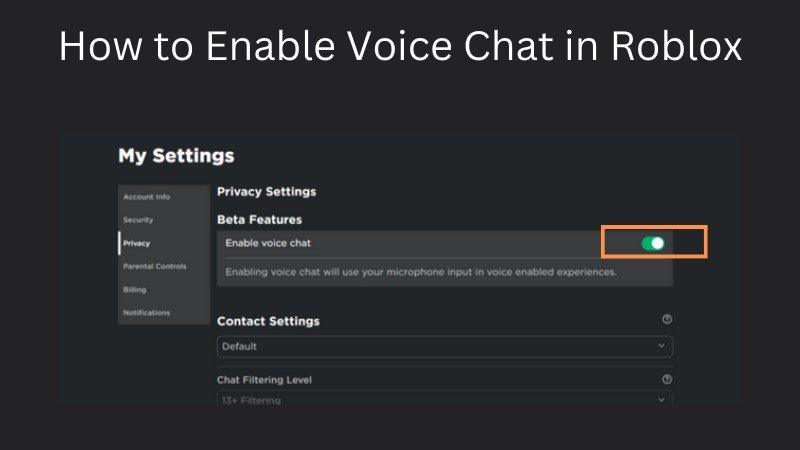
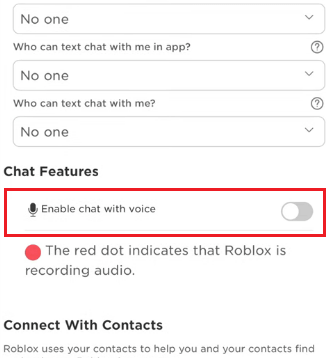
Yes, voice chat, known as 'Spatial Voice' on Roblox, is available on Xbox, but it has specific requirements. Introduced to foster more immersive social interactions, Spatial Voice is primarily available for users aged 13 and older who have verified their age on Roblox. This verification typically involves submitting a government-issued ID. Once age-verified, you can enable Spatial Voice through your Roblox privacy settings:
- Go to roblox.com on a web browser.
Log in to your account.
Go to 'Settings' (gear icon) > 'Privacy'.
Look for the 'Enable Spatial Voice' toggle and turn it on. If you haven't age-verified, you'll be prompted to do so. - On your Xbox, ensure your headset is properly connected and functioning. Your Xbox Live communication settings (as described above) must also allow voice communication.
Remember, not all Roblox experiences support Spatial Voice. Developers must enable it within their games. Social gaming trends this month highlight a growing demand for integrated voice communication, making Spatial Voice a key feature for creators and players alike.
When do age restrictions impact my ability to chat on Roblox Xbox?
Age restrictions significantly impact chat functionality across all Roblox platforms, including Xbox. If your Roblox account's registered age is under 13, your chat options will be heavily restricted to pre-approved phrases and emojis. You will not have access to free text chat or Spatial Voice. For accounts registered as 13+, free text chat is generally available, and with age verification, Spatial Voice becomes an option. It's vital to ensure your Roblox account's birthdate is accurate to access the appropriate communication features. Microsoft's Xbox Live also has age-based restrictions, and if your Xbox profile is linked to a child account, its privacy settings can further restrict communication regardless of your Roblox age.
Where can I adjust Xbox privacy settings for Roblox chat?
Xbox privacy settings are primarily managed directly on your Xbox console or through the Xbox website. Here's a quick guide:
- On your Xbox console:
Press the Xbox button on your controller to open the guide.
Go to Profile & system > Settings > Account > Privacy & online safety > Xbox privacy.
Select View details & customize.
Under Communication & multiplayer, adjust settings like 'You can communicate outside of Xbox Live with voice & text' and 'Others can communicate with voice, text, or invites' to 'Everyone' or 'Friends' for optimal Roblox chat functionality. - On the Xbox website:
Visit account.xbox.com/settings.
Sign in with your Microsoft account.
Click on Xbox Series X|S, Xbox One, and Windows 10 devices Online Safety or Privacy tab.
Adjust the relevant communication settings to 'Allow' or 'Friends'.
Remember, changes made here can affect all games, not just Roblox, so review them carefully to balance communication and safety.
What if parental controls are blocking my Roblox chat on Xbox?
Parental controls are a common reason for restricted chat on Xbox Roblox. Both Xbox Family Settings and Roblox's Parental Controls can independently enforce communication limits. If you suspect parental controls are the issue, you'll need the assistance of the adult who manages the child or teen account. Here's what to check:
- Xbox Family Settings:
The parent needs to access their Microsoft account on the Xbox website or use the Xbox Family Settings app.
They can review the privacy settings for the child's profile, specifically looking at 'Communication & multiplayer' settings.
Ensure 'You can communicate outside of Xbox Live with voice & text' is not set to 'Block' for the child's profile. - Roblox Parental Controls:
The parent needs to log into their Roblox account (or the child's account, if they have access to the parent PIN) on a web browser.
Go to 'Settings' > 'Parental Controls'.
If a Parent PIN is enabled, they'll need to enter it.
Review the 'Account Restrictions' and 'Chat & Privacy' settings to ensure communication is allowed. Parents can whitelist specific games or enable broader chat permissions.
Communicating with the account manager is key to resolving these restrictions. Many parents appreciate guides on balancing safety with social connection, especially as social gaming becomes more prevalent among Gen Z and Millennials.
How to troubleshoot common Roblox Xbox chat issues?
When Roblox chat isn't working on your Xbox, a systematic troubleshooting approach can usually solve the problem. Beyond checking your Xbox and Roblox privacy settings, here are common issues and solutions:
- No Chat Input Option:
Solution: Ensure your Roblox account is 13+ and age-verified (for Spatial Voice). Restart the Roblox game or your Xbox console. Sometimes a fresh start clears up glitches. - Voice Chat Muted/Static:
Solution: Check your headset connection. Is it fully plugged in? Is it muted on the headset itself? Test your headset with another Xbox game or party chat to ensure it's functioning. Update your Xbox controller firmware. - Cannot Hear Others / Others Cannot Hear Me:
Solution: Verify your Xbox party chat settings are not overriding in-game chat. Check the in-game audio settings within Roblox to ensure chat volume isn't turned down. If using Spatial Voice, confirm the game supports it and it's enabled. - Text Chat Filtered Heavily:
Solution: Roblox's filtering system is robust. Avoid using slang or unusual character combinations that might trigger filters. Even legitimate words can sometimes be caught. There's no direct way to disable the filter. - Temporary Glitches:
Solution: Log out and back into your Roblox account on Xbox. A full power cycle of your Xbox console (hold power button for 10 seconds) can often resolve minor software bugs affecting communication features.
What are the best practices for safe communication on Roblox Xbox?
Even with chat enabled, staying safe online is paramount, especially for busy adults who use gaming to unwind but still need to be mindful of online interactions. Here are some best practices for safe communication on Roblox Xbox:
- Friend Wisely: Only accept friend requests from people you know and trust.
- Keep Personal Info Private: Never share real names, addresses, phone numbers, email, or social media handles with strangers.
- Report & Block: If someone is being inappropriate or making you uncomfortable, use Roblox's in-game reporting tools and block them. Don't engage further.
- Review Privacy Settings Regularly: Periodically check both your Xbox Live and Roblox privacy settings to ensure they still align with your comfort level. This is especially important as platform updates can sometimes reset defaults or introduce new options.
- Be Mindful of Voice Chat: Spatial Voice adds a new layer of interaction. Be aware of your surroundings and what you might inadvertently share through your microphone.
- Understand the Filters: Roblox's text chat filter is there to protect users. While it can sometimes be overzealous, it's a critical safety net.
These practices align with responsible digital citizenship, allowing you to enjoy the social aspects of games like Roblox without unnecessary risks. Staying current with trends in online safety is as important as staying current with the latest game releases.
FAQ: Your Burning Questions About Roblox Xbox Chat Answered
Can I use a headset for chat on Roblox Xbox?
Yes, absolutely! You can use any compatible Xbox headset for both voice chat (if Spatial Voice is enabled and working) and to hear in-game audio. Ensure your headset is properly connected to your controller or console, and that its microphone isn't muted physically or through Xbox's quick settings. Many gamers find headsets essential for immersive play and clear communication, especially in fast-paced Roblox experiences.
Why is my voice chat muffled or not working at all?
If your voice chat is muffled or completely silent, several culprits could be at play. First, check your headset's physical connection and ensure it's not muted. Verify your Xbox audio settings to confirm your headset is selected as the input/output device. You might also need to update your Xbox controller's firmware via the Xbox accessories app. Sometimes, a poor internet connection can also degrade voice quality, leading to muffling or dropouts. Test your headset with an Xbox party chat to isolate if the issue is specific to Roblox or a broader console problem.
Are there any third-party apps to chat while playing Roblox on Xbox?
While Roblox on Xbox doesn't natively integrate with third-party chat apps like Discord directly within the game overlay (unlike PC), many US gamers use Discord on a separate device (mobile, tablet, or PC) simultaneously with their Xbox gaming. You can join your Discord voice channel on your phone and use a headset connected to both your phone and Xbox, or use two separate audio outputs. This is a common workaround for those seeking more robust communication options than what's available directly in-game on the console, especially among the 20-45 demographic balancing multiple platforms.
Does Roblox Premium affect chat features on Xbox?
No, Roblox Premium membership primarily offers Robux stipends, exclusive items, and trading benefits. It does not directly affect or unlock additional chat features or bypass any age, privacy, or parental restrictions for communication on Roblox Xbox. Chat functionality is governed by your account's age, age verification status, and the privacy settings set on both your Roblox account and your Xbox Live profile.
How often should I review my privacy settings?
It's a good practice to review your Xbox Live and Roblox privacy settings periodically, perhaps once every few months, or whenever there's a major platform update to either Xbox or Roblox. Technology evolves rapidly, and new features or changes to existing ones can sometimes alter default settings or introduce new options you might want to adjust. A quick check ensures your communication preferences remain aligned with your current comfort and safety levels, especially as social gaming trends continue to evolve.
What are the reporting options if someone is abusing chat?
Roblox has robust reporting tools to address chat abuse. If someone is using inappropriate language, harassing you, or violating community standards in text or voice chat, you can report them directly within the Roblox experience. Look for an in-game report button (often accessible via the player list or by hovering over a player's avatar). This sends a report to Roblox moderators who will review the situation and take appropriate action. Additionally, you can block players to prevent further communication. Utilizing these tools is crucial for maintaining a positive and safe gaming environment for everyone.
Can I chat with PC players while on Xbox Roblox?
Yes, Roblox is a cross-platform game, meaning you can play with friends regardless of whether they're on PC, mobile, or Xbox. If your chat settings on both Xbox Live and Roblox are configured to allow communication, you will be able to text chat with PC players within the same Roblox game. For Spatial Voice, both you and the PC player must have it enabled and be in a Spatial Voice-enabled experience. Cross-play communication is a cornerstone of modern gaming, allowing friends to connect seamlessly across devices, reflecting a key trend for US gamers in 2020s.
Will future Xbox or Roblox updates simplify chat?
It's a strong possibility! Both Microsoft and Roblox are continually working to enhance user experience and safety. Given the consistent feedback and the importance of social features, future updates are likely to streamline the chat experience, potentially integrating communication settings more intuitively or expanding voice chat capabilities. The industry trend is towards more seamless cross-platform functionality while maintaining robust safety measures. Stay tuned to official announcements from Xbox and Roblox for the latest developments.
What if my account is verified as 13+ but chat is still restricted?
If your Roblox account is 13+ and even age-verified, but chat remains restricted, the most likely culprit is your Xbox Live privacy settings or parental controls on the Xbox side. Double-check the 'Communication & multiplayer' settings within your Xbox privacy to ensure they are not set to 'Block' or 'Friends only' if you're trying to chat with everyone. If your Xbox profile is part of an Xbox Family Group, an adult organizer's settings might be overriding yours. Confirming these Xbox-specific settings is usually the key to unlocking full chat access.
Got more tips or questions about how to get chat on Xbox Roblox? Share your insights in the comments below! Don't forget to share this guide with your squad, and sign up for our newsletter for more gaming tips and tricks delivered straight to your inbox.
Understand Xbox Roblox chat limitations Adjust account privacy settings Enable voice chat and text chat options Manage parental controls for seamless communication Troubleshoot common chat issues on Xbox Roblox Discover safe socializing tips for Roblox
35


How To Enable TEXT CHAT On Roblox XBOX One In Game YouTube . Roblox On Xbox Can You Chat With Your Voice . Xbox Roblox Chat How To Turn It Off . Roblox How To Chat In Roblox On Console Tutorial Easy Guide Xbox . How To Get Roblox Voice Chat On Xbox YouTube



Roblox How To Text Chat On Xbox Series X S Tutorial Easy Guide . How To Enable Voice Chat In Roblox On Xbox YouTube . Roblox Xbox How To Change Text Chat Translation Language Tutorial . ROBLOX XBOX How To Chat Simple Guide YouTube . Roblox On Xbox Can You Chat With Your Voice


Roblox On Xbox Can You Chat With Your Voice . Roblox Voice Chat Get Talking Now . How To Get Voice Chat On Roblox 2026 YouTube . How To Get Voice Chat On Roblox 2026 Enable VC Without ID Izoate How To Enable Voice Chat In Roblox 2026.webp. Xbox Roblox Chat How To Turn It Off


Roblox Chat Rooms Your Guide To Connecting Amp Chat Enable Voice Chat Roblox Steps . Roblox Mobile Chat Easy Steps To Turn It On How To Get Voice Chat On Roblox 3 . Roblox On Xbox Can You Chat With Your Voice . Roblox On Xbox Can You Chat With Your Voice PC Mobile How To Get Voice Chat On Roblox . How To Get Voice Chat On Roblox Full Guide YouTube


How To Message On Roblox 2026 A Quick Guide . Roblox On Xbox Can You Chat With Your Voice . How To Instantly Get TEXT CHAT On ROBLOX PS5 XBOX PC YouTube . How To Get Voice Chat On Roblox 2026 WITHOUT ID Full Guide YouTube . Close Or Disable Roblox Chat On Xbox Quick Toggle And Settings Image 249


How To Remove The Chat Feature In Roblox On Xbox YouTube . Xbox Roblox Chat How To Turn It Off . How To Message On Roblox 2026 A Quick Guide . HOW To ENABLE VOICE CHAT On ROBLOX In 2026 How To Get Voice Chat Img. Roblox Voice Chat Get Talking Now



How To Enable Voice Chat In Roblox The Ultimate Guide For Gamers The AD 4nXf. How To Enable TEXT CHAT On Roblox XBOX One In Game YouTube . Roblox Chat Rooms Your Guide To Connecting Amp Chat . How To Get Voice Chat In Roblox On Xbox EASY FIX 2025 YouTube . How To GET VOICE CHAT On Roblox 2026 YouTube