Unlock the secrets to personalizing your Roblox experience by mastering how to wear Roblox decals. This comprehensive guide is tailored for the average gamer, around 36 years old, who balances gaming with a busy life. Discover easy steps to upload, apply, and troubleshoot decals, transforming your avatar and game creations. Learn practical tips for finding unique decals, ensuring they look great, and staying within Roblox's community guidelines. From simple personal touches to elaborate in-game branding, this article covers everything you need to know. Elevate your virtual presence, express your creativity, and make your mark in the Roblox metaverse without the usual setup hassles or performance worries. Get ready to stand out and enjoy a more personalized gaming journey. Understanding how to wear Roblox decals means more than just a cosmetic change; it's about reclaiming your digital space and making it uniquely yours amidst the bustling gaming world.
How do I find a Roblox decal ID?
You can find a Roblox decal ID by navigating to the decal on the Roblox website. Once you click on a decal, its unique numeric ID will be visible in the URL bar of your browser. Alternatively, if you've uploaded a decal yourself, you can find its ID in your 'Creations' under the 'Decals' section.
Can I put any image on a Roblox decal?
No, you cannot put any image on a Roblox decal. All uploaded images are subject to Roblox's strict moderation policies and community standards. This means images must be family-friendly, not contain copyrighted material unless you have permission, and avoid any content that is sexually explicit, violent, or promotes illegal activities. Always ensure your images are appropriate to avoid removal or account penalties.
How do I make a Roblox decal transparent?
To make a Roblox decal transparent, you need to use an image editing program (like Photoshop, GIMP, or online tools) to create an image with a transparent background. Save your image as a PNG file, as PNGs support alpha channels for transparency. When you upload this PNG to Roblox, the transparent areas will remain transparent, allowing your decal to blend seamlessly with the surface it's applied to in Roblox Studio.
Why is my Roblox decal blurry or stretched?
Your Roblox decal might appear blurry or stretched if the original image resolution is too low, or if its aspect ratio doesn't match the dimensions of the surface you're applying it to. For best results, use a high-resolution image and try to match its proportions to the object's surface. In Roblox Studio, you might need to adjust the 'Texture' or 'Decal' properties like 'StudsPerTile' to correctly scale and fit the image.
Is it possible to put decals on Roblox shirts and pants?
Yes, but not by directly applying a 'decal' in the traditional sense. To put custom images on Roblox shirts and pants, you need to upload your image as a 'Shirt' or 'Pants' template through the 'Create' section on the Roblox website. You'll design your image to fit Roblox's specific clothing templates, then upload it. This essentially turns your decal design into a wearable item of clothing for your avatar.
What are Roblox decals and why should I use them?
Roblox decals are custom images players upload and apply to surfaces within games or avatar items. They're like digital stickers for your virtual world. For gamers aged around 36 balancing life and play, decals offer a quick, creative outlet to personalize spaces or avatars without complex design. They allow self-expression, in-game branding, or unique touches, making your experience truly yours. With 87% of US gamers valuing personalization, decals are a perfect way to make your mark, enhancing social play and individuality.
How do I get my uploaded decal to appear on my Roblox game object?
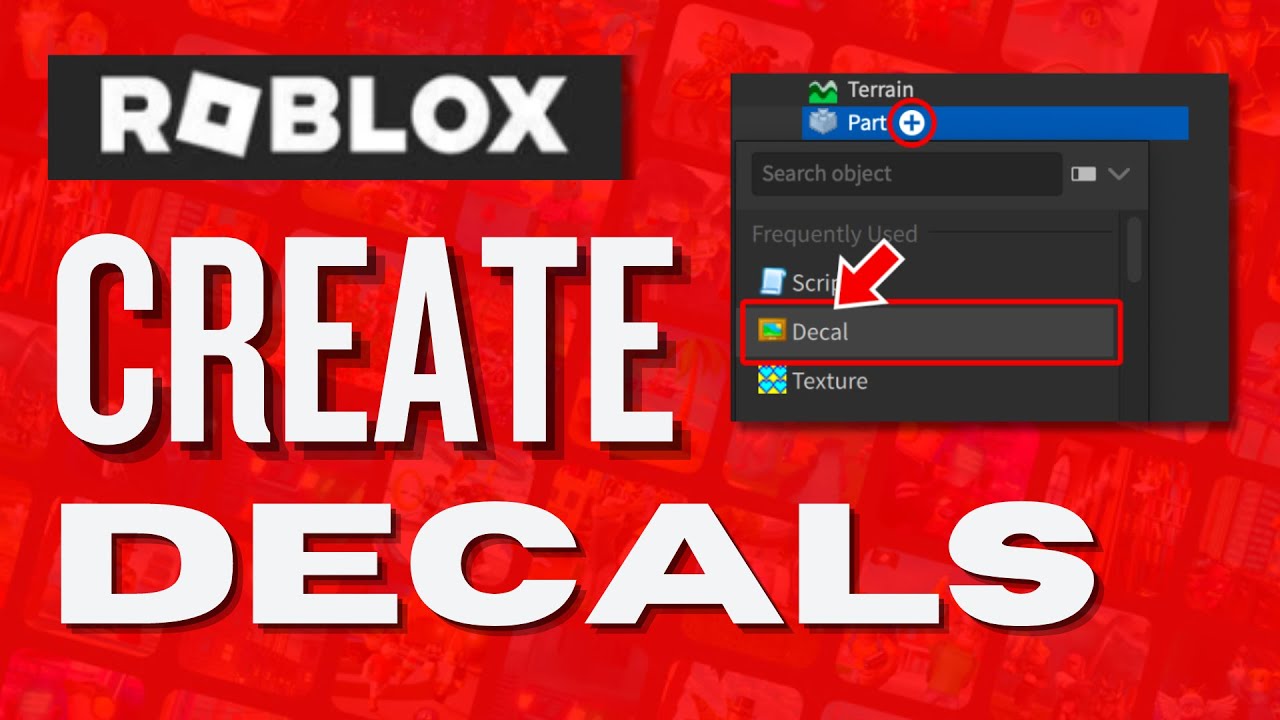
First, ensure your decal has passed Roblox moderation and you have its unique Asset ID. In Roblox Studio, select the part you want to apply the decal to. In the 'Properties' window, locate the 'Texture' or 'Decal' property. Paste your decal's Asset ID into this field. The decal should then appear on the object's surface. You might need to adjust properties like 'Face' or 'StudsPerTile' to control its orientation and scaling, ensuring it displays exactly as intended.
Can I sell items with my custom decals on Roblox?
Yes, you can sell items like shirts, pants, or even 3D models with your custom decals applied, provided they adhere to all Roblox community standards and intellectual property rules. You'll need to upload your decal as part of a larger asset (like clothing or an accessory) and go through the official selling process on Roblox, which usually involves a small Robux fee for uploading the sellable item itself. This is a popular way for creators to monetize their artistic skills.
How do I remove a decal from an object in Roblox Studio?
To remove a decal from an object in Roblox Studio, simply select the object in the 'Explorer' window. Then, find the 'Decal' instance that is a child of that object and delete it. Alternatively, if the decal was applied using the 'Texture' property, you can clear the Asset ID from the 'Texture' field in the 'Properties' window of the selected object. This will instantly remove the decal from the surface.
Are there any copyright rules for Roblox decals?
Yes, Roblox has strict copyright rules for decals. You must only upload images that you own or have explicit permission to use. Using copyrighted material without authorization is a violation of Roblox's Terms of Service and can result in the removal of your decal, account moderation actions, or even legal consequences. Always create original content or use royalty-free images to stay compliant and avoid issues.
What's the difference between a 'Decal' and a 'Texture' in Roblox Studio?
In Roblox Studio, a 'Decal' is a specific instance that projects an image onto one face of a part, often with more control over its orientation and wrapping. A 'Texture,' on the other hand, is a property of a part that applies an image across its entire surface, tiling it if necessary. While both use image IDs, 'Decal' is a child object with its own properties, whereas 'Texture' is a property of the part itself. Both use the same type of uploaded image asset.
Can I change the size or position of a decal after it's applied in Roblox Studio?
Yes, you can change the size and position of a decal after it's applied in Roblox Studio. When you select a 'Decal' instance under an object, you can adjust its 'StudsPerTile' property to control its scale. You can also change the 'Face' property to apply it to a different side of the part. For finer positioning, you might need to manipulate the object itself or use a 'SurfaceGui' with an 'ImageLabel' for pixel-perfect placement on specific surfaces.
Are you a gamer who loves personalizing everything, from your gaming setup to your in-game avatar? If you're like the average US gamer, around 36 years old, you likely balance intense gaming sessions with work, family, and life's other demands. You appreciate quality, value your time, and love to stand out without the unnecessary fuss or hype. In the vast universe of Roblox, where creativity knows no bounds, standing out is key. But let's be honest, navigating the intricacies of customization can sometimes feel like another chore after a long day.
That's where Roblox decals come in. These digital stickers are a fantastic way to add a unique flair to your avatar, your game creations, or even just a fun touch to a virtual hangout spot. However, if you've ever tried to figure out exactly how to wear Roblox decals or apply them effectively, you might have hit a few snags. From finding the right images to understanding moderation, it can be less straightforward than it seems. This guide is designed to cut through the confusion, offering clear, actionable advice to help you master Roblox decals, empowering you to express yourself effortlessly and make your mark. Did you know 87% of US gamers regularly engage with their favorite titles, often spending 10+ hours a week? For many, gaming is a vital outlet for relaxation and social connection, and personalization makes that experience even more rewarding. Let's dive in and unlock your creative potential!
What Exactly Are Roblox Decals and Why Should Gamers Use Them?
Roblox decals are custom images that players can upload to the Roblox platform and then apply to surfaces within their games, or onto avatar items they own. Think of them as digital stickers, posters, or even texture overlays. For the busy adult gamer, they offer an incredible avenue for self-expression without requiring extensive graphic design skills or deep scripting knowledge. You can brand your in-game store, add a unique logo to your virtual vehicle, or simply put a funny picture on your shirt. They provide a quick and impactful way to personalize your experience, helping you stand out in the crowded Roblox metaverse, which aligns perfectly with the desire for unique identity that many gamers value. With mobile gaming dominating and social interaction being a core trend, quick, impactful personalization like decals is more relevant than ever.
How Do I Find or Create Decals for Roblox?
Finding or creating decals is the first step to personalizing your Roblox world. You have a few options: Firstly, you can browse existing decals uploaded by other users within the Roblox 'Create' section or by searching the marketplace. Many creators share their decal IDs for public use. Secondly, and often more satisfyingly, you can create your own. This involves using any image editing software you're comfortable with (even a simple one like Paint or online tools like Canva) to design an image. Supported formats typically include PNG, JPG, BMP, or TGA. Ensure your image is appropriate for Roblox's community standards to avoid moderation issues. Remember, a common pain point for gamers is content restrictions, so always check guidelines.
What's the Process for Uploading a Custom Image to Become a Roblox Decal?
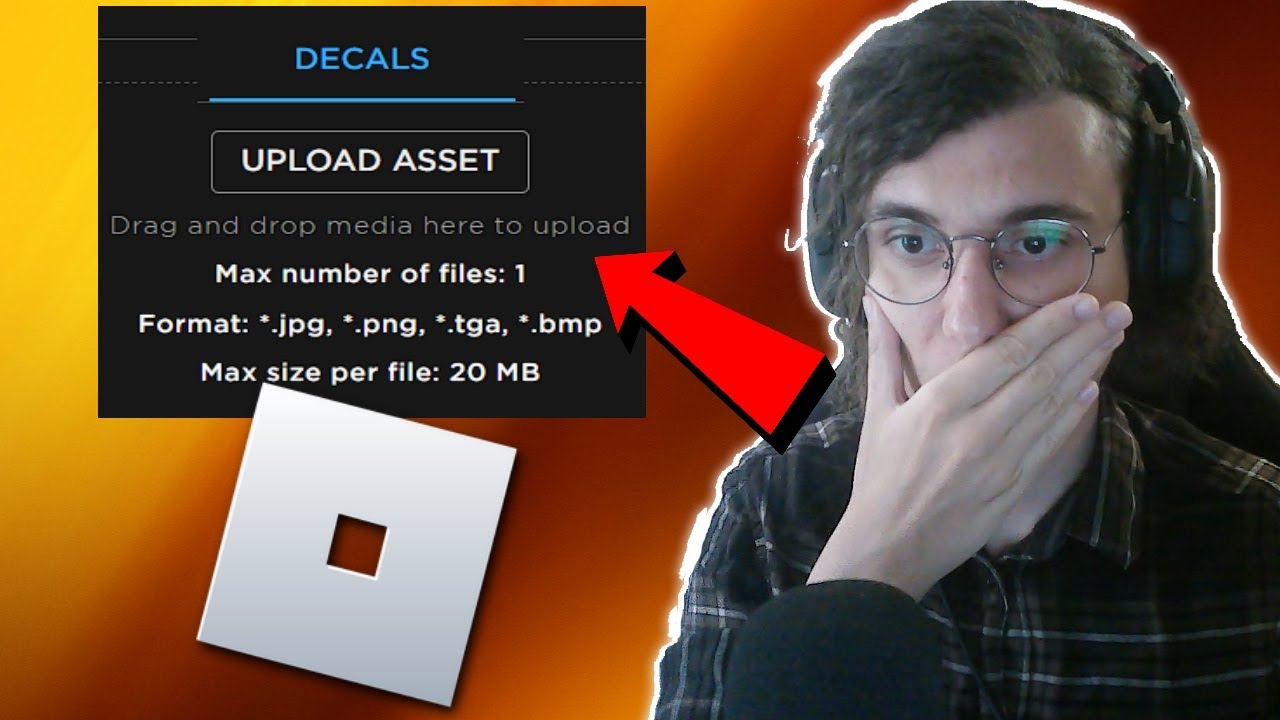
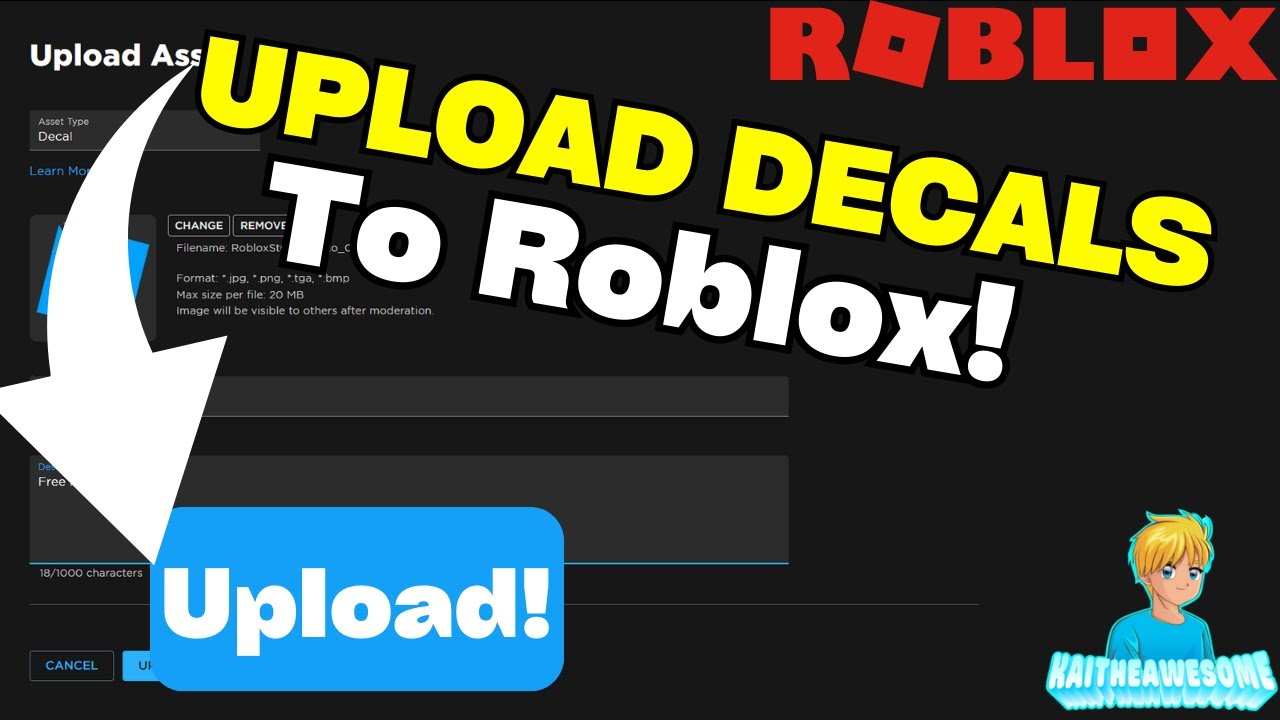
Uploading your custom image to Roblox to transform it into a decal is straightforward. First, log into your Roblox account and navigate to the 'Create' section on the Roblox website. From there, select 'Decals' from the left-hand menu. You'll see a button labeled 'Choose File' or 'Upload Image'. Click this, select the image file you prepared from your computer, give your decal a clear and descriptive name, and then click 'Upload'. Roblox will then process your image and put it through a moderation queue to ensure it complies with their terms of service. This waiting period can sometimes be a minor frustration, but it's crucial for maintaining a safe and family-friendly platform. Once approved, your decal will have a unique ID, which is essential for applying it.
How Do I Apply a Decal to My Roblox Avatar or In-Game Item?
Applying a decal involves using its unique ID. For avatar items (like shirts or pants), you typically need to upload your image as a 'Shirt' or 'Pants' template rather than a 'Decal'. However, if you're looking to apply a decal to an in-game object within a game you're building or editing, you'll open Roblox Studio. Select the part you want to apply the decal to, then in the 'Properties' window, look for the 'Texture' or 'Decal' property. Paste your decal's Asset ID (the unique number Roblox assigns after upload) into this field. The decal will then appear on the surface of your chosen object. This method gives you precise control over placement and scaling within your own creations. Many gamers value skill-building, and mastering Studio is a fantastic way to enhance that.
Can I put decals on my Roblox avatar directly, or only on custom items?
This is a common question among players looking to personalize their look. You cannot directly 'wear' a decal on your default Roblox avatar in the same way you might apply a sticker to a physical object. Instead, for avatar customization, you need to upload your image as a 'Shirt' or 'Pants' template in the 'Create' section of Roblox. This process essentially turns your decal design into wearable clothing. For accessories or other avatar elements, you'd typically need to create a 3D model in Roblox Studio and apply the decal as a texture to that model, then upload it as an accessory. So, while not a direct 'sticker' application, there are effective ways to incorporate decals into your avatar's style, often requiring a few extra steps if you're not using existing clothing templates.
What Are the Best Practices for Creating and Using Roblox Decals to Avoid Moderation Issues?
To ensure your decals are approved and stay on the platform, adherence to Roblox's community standards is paramount. Always avoid copyrighted material unless you have explicit permission. Steer clear of any content that is sexually explicit, violent, hateful, or promotes illegal activities. Keep images family-friendly and respectful. Using original artwork is always the safest bet. Before uploading, double-check your images for any unintentional offensive elements. Roblox uses automated and human moderation, and violations can lead to your decal being removed, or even account penalties. Gamers today, especially those balancing life and play, appreciate clear rules that foster a positive community environment, ensuring a safe space for everyone.
Why Are Some of My Decals Not Appearing or Showing Up Incorrectly?
Encountering issues with decals is a common frustration. If your decal isn't appearing, first check if it has passed Roblox's moderation; new uploads can take time. Ensure you've correctly pasted the Asset ID – even a single incorrect digit can cause problems. For in-game objects, verify the 'Texture' or 'Decal' property is correctly assigned in Roblox Studio. If it's showing incorrectly (stretched, blurry, or wrong colors), it might be due to the original image's resolution or aspect ratio not matching the surface it's applied to. Try resizing or re-cropping your original image before re-uploading. Sometimes, restarting Roblox Studio or your game client can resolve minor display glitches. Patience and precise ID entry are key to troubleshooting.
How Can Decals Enhance My Roblox Game or Social Experience?
Decals offer a powerful way to enhance both your individual game development and your social interactions within Roblox. For creators, decals can provide branding for your game, detailed textures for custom builds, informational signs, or even interactive elements like buttons (when combined with scripts). For players, decals can be used to personalize their virtual homes, vehicles, or avatar items, creating a unique identity that reflects their personality. This allows for deeper engagement and a stronger sense of ownership within the metaverse. Given that social play and self-expression are major draws for gamers, decals provide an accessible tool to foster these connections and customize shared spaces, making every interaction feel more personal and fun.
Are There Any Costs Associated with Uploading or Using Roblox Decals?
One of the great things about Roblox decals is their accessibility. Generally, uploading and using decals is free! You do not need Robux to upload an image to become a decal. However, if you plan to sell clothing items (shirts, pants) that use your decal design, or if you want to upload a decal to a group you own, there might be small Robux fees associated with the overall item upload or group asset creation, not the decal itself. For basic personal use, simply uploading an image for your own use in games or on avatar items you personally modify within Studio is free. This 'value for money' aspect is often appreciated by gamers, ensuring creativity isn't locked behind a paywall.
Can I Use Decals for Business or Branding Within Roblox?
Absolutely, with certain considerations. Many creators and businesses use decals as a key tool for branding within their Roblox experiences. You can display logos, advertisements, promotional images, or information boards using decals. This is particularly effective for immersive brand experiences or virtual storefronts. However, always ensure your branding complies with Roblox's advertising policies and general community standards. Avoid external links that aren't approved by Roblox, and ensure your content is appropriate for all ages. Leveraging decals for branding within your game can significantly boost recognition and engagement, turning your creative space into a recognizable hub for players, tapping into the creator/streamer influence trend.
What Are Some Creative Ways to Use Roblox Decals Beyond Just Basic Decoration?
Beyond simple decoration, Roblox decals can be incredibly versatile. Think outside the box: use them to create custom user interfaces (UI) elements within your game, like buttons or health bars. They can form dynamic floor patterns, intricate wall murals, or even serve as interactive puzzles (e.g., matching decals). Some developers use decals to create subtle details on 3D models that would be too complex to model directly, like wear and tear on an old wall or intricate machinery details. Decals can also be layered to create complex visual effects or used as transparent overlays for unique lighting effects. The only limit is your imagination and adherence to performance optimization best practices to keep your game running smoothly.
Mastering how to wear Roblox decals, whether it's for personalizing your avatar or enhancing your game world, is a powerful skill that adds significant depth to your Roblox experience. In a gaming landscape where expression and community are paramount, decals offer an accessible and effective way to make your mark. No more generic avatars or bland builds; it's time to infuse your digital life with your unique style. We've covered everything from finding and uploading to applying and troubleshooting, ensuring you have all the tools you need to succeed. What's your biggest Roblox customization challenge? Comment below!
FAQ Section
Are Roblox decals free to upload?
Yes, uploading a basic image to become a decal for personal use in Roblox is generally free and does not require Robux.
How long does it take for a decal to be approved by Roblox moderation?
Moderation times can vary, but typically a decal can be approved anywhere from a few minutes to several hours. Sometimes, it might take longer if there's a backlog or if the image requires closer review.
Can I remove a decal once it's been applied to an object?
Yes, if you applied the decal in Roblox Studio to an object you own or have editing permissions for, you can simply delete the 'Decal' instance from the object in the Explorer window or clear the 'Texture' property.
What image file formats are best for Roblox decals?
Roblox supports PNG, JPG, BMP, and TGA formats. PNG is often recommended for its support of transparency, which can be very useful for custom shapes.
Is there a size limit for decal images?
While Roblox doesn't impose a strict pixel dimension limit for decals, larger images (e.g., above 1024x1024) may be automatically resized for optimization. It's best to use reasonably sized images that maintain quality without being excessively large.
Can other players use my uploaded decals?
By default, decals you upload are public and can be used by other players if they know the Asset ID. However, if you're concerned about others using your intellectual property, you can manage privacy settings for certain assets, or simply design your decals for personal use or within controlled game environments.
Easy steps to upload and apply decals, troubleshooting common issues, finding unique decal IDs, personalizing your avatar and game assets, creative uses for decals, understanding Roblox moderation for decals, tips for optimal decal appearance.
35


How To Wear A Decal In Roblox Computer YouTube . Best Decal IDs In Roblox Working Tested And Updated Roblox Dress To Impress Codes . How To Make Decals In Roblox 2026 YouTube . How To Create Decals In Roblox Easy Method 2024 YouTube . How To Make Decals In Roblox YouTube



How To Add Decals Images To Parts In Roblox Studio YouTube . 100 Best Decal IDs In Roblox June 2026 Beebom Best Decal IDs In Roblox 1 . How To Wear Decals In Roblox Fashion Buzz . How To Upload Images To Roblox In 2026 Upload Decals YouTube . How To Put Decals On Your Roblox Avatar Sddefault



How To Wear Decals In Roblox Fashion Buzz . How To Make Decals In Roblox Full Guide YouTube . How To Make And Find Roblox Decals Pocket Tactics Roblox Decals Browse 550x309 . How To Put On Decals In Roblox At Rita Magno Blog . Best 13 HOW TO MAKE DECALS ON ROBLOX Artofit


How To Make Decals In Roblox Full Guide YouTube . How To Make A Decal On Roblox Roblox Create Decals YouTube . How To Make Decals In Roblox YouTube . How To Put On Decals In Roblox At Rita Magno Blog . How To Make Decals In Roblox For Beginners YouTube


Roblox 2026 Logo REVEALED New Color New Look YouTube Maxres2 . How To Put Decals On Your Roblox Avatar Hq720 . How To Wear Decals In Roblox Fashion Buzz . How To Equip Decals In Roblox YouTube . Roblox Decals A Guide Printiverse Roblox Decals


How To UPLOAD DECALS IMAGES To Roblox After Update 2023 YouTube . 480 Roblox Outfit Decals Ideas In 2026 Roblox Roblox Codes Roblox . Roblox DBZ Decals What Are They For 2026 Maxres2 . HOW TO MAKE UR OWN SHIRT IN ROBLOX 2026 YouTube . What Are Roblox Ice Decals For 2026


How To Wear Decals In Roblox Fashion Buzz . YouTube . How To Make Decals In Roblox YouTube . How To Wear Decals In Roblox Fashion Buzz . How To Use Decals In Roblox Screenshot 82 1 408x320