Discover how to effectively manage your privacy settings on Roblox and prevent automatically joining friends in games. This comprehensive guide provides step-by-step instructions to take control of your in-game social experience. Many gamers, especially adults balancing life and hobbies, value privacy and the ability to choose when and how they interact socially online. Roblox's default settings can sometimes lead to unexpected friend joins, which can disrupt focused gameplay or quiet solo sessions. This resource will navigate you through account configurations, explaining various options from appearing offline to adjusting specific game join permissions. Understanding these tools empowers you to enjoy Roblox on your terms, ensuring your gaming time is always relaxing and fun, whether you are seeking social interaction or a moment of peaceful solitude. Learn to optimize your Roblox experience for maximum personal control and privacy today.
How do I stop friends from joining my game on Roblox?
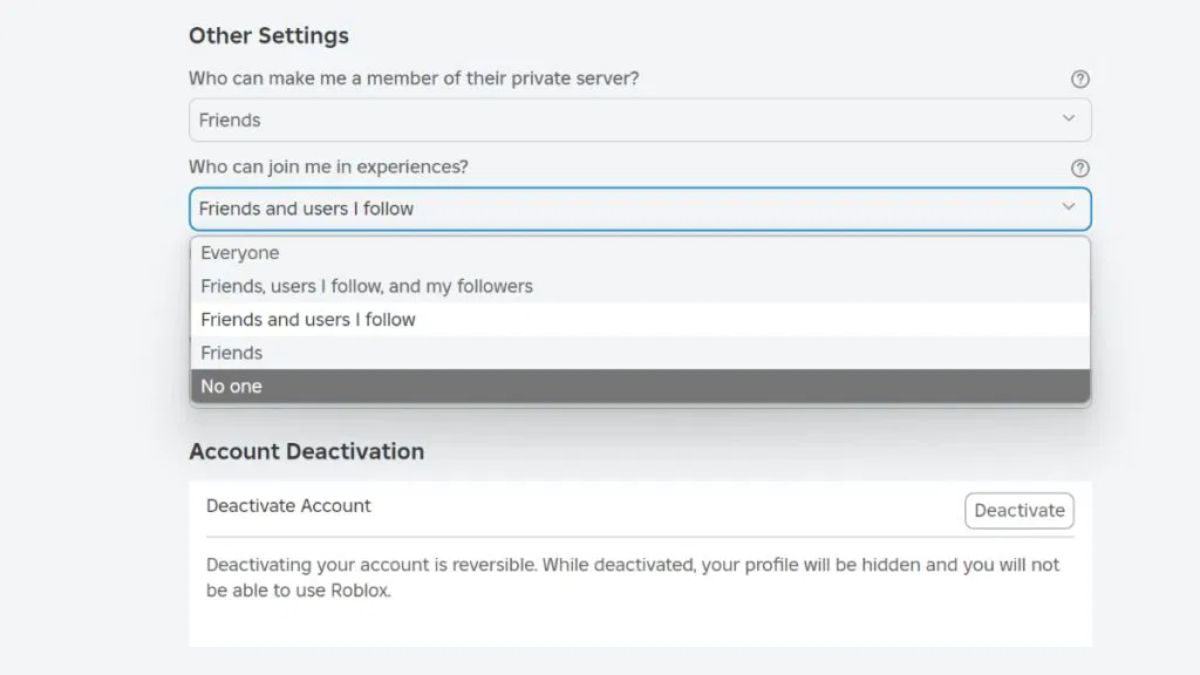
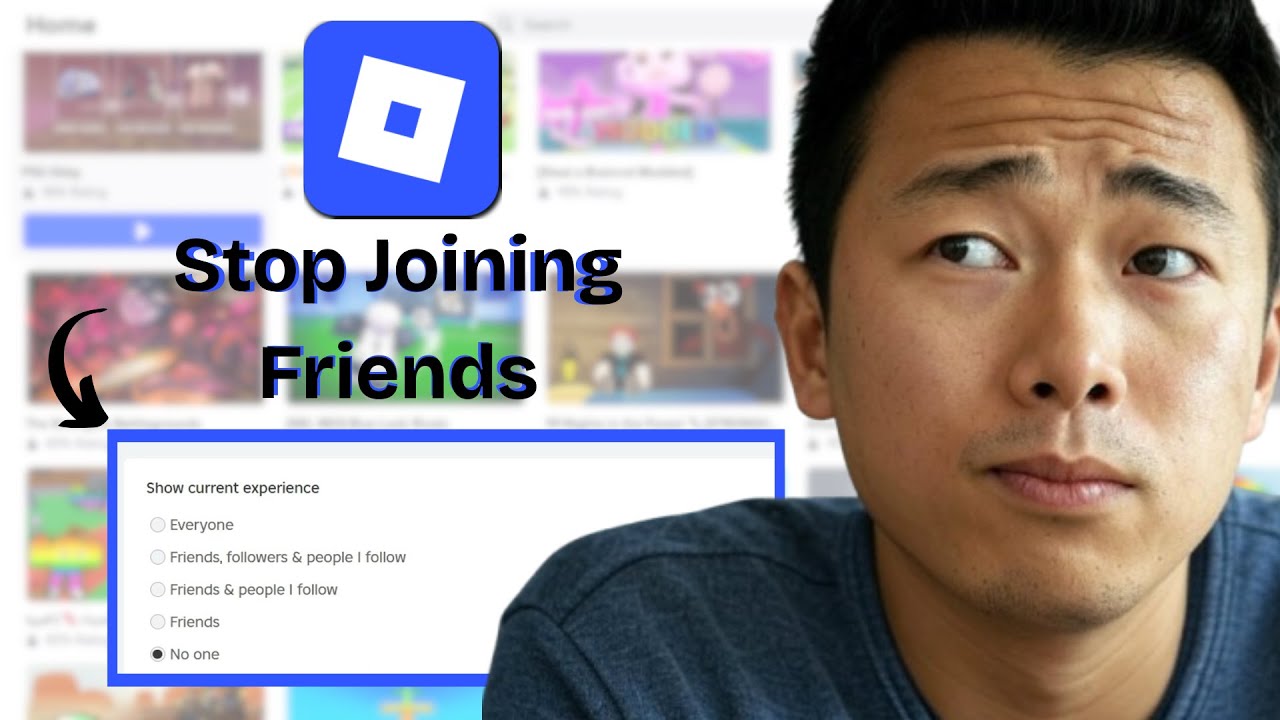
To prevent friends from joining your game on Roblox, navigate to your 'Settings' (gear icon), then 'Privacy'. Change the 'Who can join me in games?' option to 'No one'. This setting ensures that no one, including friends, can directly follow you into an active game session, giving you control over your play. You can revert this setting anytime if you wish to allow friends to join again.
Can I appear offline on Roblox?
Unfortunately, Roblox does not have a native 'appear offline' feature at this time. Friends will typically see you as online if you are logged in and playing. To achieve a similar effect of privacy, your best bet is to rigorously manage your 'Who can join me in games?' privacy setting by setting it to 'No one', effectively making you invisible to direct game joins.
Where are the privacy settings to prevent auto-joins on Roblox?
The primary privacy settings to prevent auto-joins are found by clicking the gear icon for 'Settings' on the Roblox website or app. From the menu, select 'Privacy'. Within this section, look for the option titled 'Who can join me in games?' and set it to 'No one'. This directly controls who has permission to enter your current game session.
Why do my friends keep joining my Roblox game without an invite?
Friends often join your Roblox game without an explicit invite because your privacy settings likely allow it. The default 'Who can join me in games?' is often set to 'Friends' or 'Everyone'. To stop this, you need to change that specific privacy setting to 'No one' in your Roblox account settings under the 'Privacy' tab.
How can I manage my Roblox friend requests to reduce social interruptions?
To manage friend requests and minimize social interruptions, go to 'Settings' then 'Privacy'. Adjust 'Who can send me friend requests?' to 'Friends of Friends' or periodically review and decline requests from individuals you don't recognize or prefer not to connect with. A curated friend list inherently reduces the potential for unwanted joins.
Does Roblox have party settings to control who joins my group?
While Roblox has 'party' features in some specific games, there isn't a universal Roblox-wide party setting to control who joins your group across all experiences. The most effective way to control who joins you in any game, whether you're in a 'party' or not, remains the 'Who can join me in games?' privacy setting in your main account settings.
Are there any in-game settings that override my main Roblox privacy preferences?
Generally, your main Roblox account privacy settings, specifically 'Who can join me in games?', should override in-game settings regarding direct joins. However, some individual game experiences might have their own specific social controls or private server options. Always check both your global Roblox settings and any game-specific privacy options for the most comprehensive control over your in-game interactions.
Welcome, fellow gamers! In the ever-evolving world of online gaming, maintaining control over your social experience is paramount. For many of us, gaming is a vital outlet – a way to relax after a long day, connect with friends on our own terms, or simply dive into a virtual world for some solo adventure. But sometimes, Roblox's default social settings can throw a wrench into those plans, especially when you find yourself automatically joining friends' games without intending to. It's a common pain point for countless players, particularly the 87 percent of US gamers who regularly play and average over 10 hours a week, often juggling work, family, and other life commitments. You value your gaming time, and unexpected social interactions can disrupt that precious balance.
This guide is crafted for you – the adult gamer (average age around 36) who appreciates a focused, tailored gaming experience. We understand you're not looking for hype, but practical, actionable solutions. You want to know **how to not auto join friends on Roblox** and regain command over your playtime. Whether you're trying to explore a new game in peace, focus on skill-building, or just need a moment of digital quiet, this article will walk you through the settings and strategies to ensure your Roblox experience aligns with your preferences. Let's dive in and take back control of your virtual world, ensuring your game sessions are always exactly what you need them to be.
Why Does Roblox Automatically Join Friends' Games?
Roblox is designed with social interaction at its core, aiming to foster a connected community. The platform often prioritizes ease of joining friends as a default setting to encourage multiplayer experiences. When your privacy settings are set to 'Everyone' or 'Friends' for who can join you, Roblox facilitates this by allowing friends to follow you into games or, in some cases, you might automatically join their active session if you select their profile or a specific game they are playing without realizing the direct 'join' implication. This feature, while convenient for some, can be intrusive for others who prefer more control over their social interactions, especially when looking for a solo gaming session or wanting to avoid specific friends for a bit.
How Can I Adjust My General Privacy Settings on Roblox?
Controlling who can join you starts with your overarching privacy settings. To access these, navigate to the Roblox website or app and click on the gear icon, then select 'Settings'. From there, choose 'Privacy'. This section is your command center for managing various aspects of your social visibility. Look for options related to 'Who can join me in games' or 'Who can make me a VIP server'. Changing these from 'Everyone' or 'Friends' to 'No one' is a crucial first step in preventing unwanted auto-joins. Remember to save any changes you make.
Can I Appear Offline on Roblox to Avoid Friends Joining My Game?
Unfortunately, Roblox does not currently offer a native 'appear offline' status button similar to other gaming platforms. This means your friends can usually see when you are online and what game you are playing, which can lead to direct joins or follow attempts. While there isn't a direct toggle, implementing the privacy settings mentioned above, particularly restricting who can join you, serves as the most effective workaround. Many gamers wish for this feature, hoping Roblox will introduce it in future updates to give players more control over their online presence. Until then, managing join permissions is your best bet for a more private experience.
What Specific Settings Prevent Friends From Joining My Game?
Beyond the general privacy settings, there are a couple of key options to focus on within the Privacy tab. First, locate the 'Who can join me in games?' setting. Changing this from 'Friends' or 'Everyone' to 'No one' will explicitly prevent anyone from directly following you into a game. Second, consider the 'Who can invite me to VIP servers?' setting. While not directly about auto-joining, this prevents unwanted invitations that might lead to accidental joins. For an even stricter approach, some players opt to change 'Who can chat with me in-game' to 'No one', which can deter friends from trying to interact with you if they do manage to find you. These combined settings offer a robust shield against unplanned social engagements.
How Do I Control Who Can Send Me Friend Requests to Limit New Connections?
Managing your friend request settings is another layer of control for your social experience on Roblox. In the 'Privacy' section of your settings, look for the 'Who can send me friend requests?' option. You can typically choose between 'Everyone' or 'Friends of Friends'. If you're looking to significantly reduce unsolicited requests and maintain a smaller, more curated friend list, selecting 'Friends of Friends' is advisable. If you prefer to manually control every new connection, you can periodically review and clean up your pending requests. This proactive approach helps ensure that only individuals you genuinely wish to connect with have a chance to join your game sessions in the future.
Does Playing in Private Servers or Experiences Help Prevent Auto-Joins?
Yes, utilizing private servers or experiences within Roblox is an excellent way to guarantee a solo or controlled group gaming session. Many popular games offer the option to create a private server, sometimes for a small Robux fee, which grants you exclusive access or allows you to invite specific players. When you're in a private server, only those with the server link or explicit invitation can join you. This completely bypasses the auto-join functionality for your general friends list. For gamers who enjoy playing specific games without interruption, investing in or finding games with free private server options can significantly enhance their privacy and focus, making it a valuable strategy for undisturbed play.
What Are the Best Practices for Maintaining My Roblox Privacy?
Maintaining privacy on Roblox involves a multi-faceted approach. Regularly review your privacy settings, especially after any platform updates, as defaults can sometimes reset or new options may become available. Be mindful of who you accept as a friend; a smaller, trusted friend list naturally reduces auto-join risks. Consider using a separate Roblox account if you have different needs for social interaction (e.g., one for public play, one for close friends only). Educate yourself about the privacy settings within individual games, as some experiences have their own unique social controls. Always log out of shared devices to prevent unauthorized access to your account. By adopting these practices, you ensure a consistently private and enjoyable Roblox experience, respecting your need for quiet time or focused play.
Can Third-Party Tools or Extensions Help With Roblox Privacy?
While some third-party browser extensions claim to offer features like 'appear offline' or enhanced privacy controls for Roblox, exercising caution is paramount. Roblox itself does not officially support or endorse these tools. Using unofficial extensions can pose significant security risks, potentially compromising your account information, personal data, or even leading to your account being banned for violating Roblox's Terms of Service. It's always best to rely solely on the official privacy settings and features provided directly by Roblox. Prioritize your account security by avoiding unverified third-party software and report any suspicious activity or extensions you encounter to Roblox support. Stick to the built-in safeguards to protect your account and maintain a secure gaming environment.
As we navigate the vibrant and ever-expanding world of Roblox, maintaining control over your personal space and social interactions is crucial for an enjoyable experience. By understanding and utilizing the privacy settings available, you empower yourself to game on your own terms, whether that means diving into a bustling social hub or exploring a new world in serene solitude. Remember, your gaming time is valuable, and having the tools to manage how and when you interact with others ensures it remains a source of relaxation and fun. What's your biggest gaming challenge when it comes to social settings? Comment below!
FAQ Section
How do I stop friends from following me into a game on Roblox?
To prevent friends from following you into a game, go to your Roblox 'Settings', then 'Privacy'. Change the 'Who can join me in games?' option to 'No one'. This will block anyone, including friends, from directly joining your active game sessions. Remember to save your changes for them to take effect immediately.
Is there a way to go invisible or appear offline in Roblox?
Roblox currently does not offer a direct 'appear offline' feature. Your online status is generally visible to your friends. The most effective way to manage your visibility and avoid unsolicited joins is by adjusting your privacy settings, specifically limiting who can join you in games, as this acts as a strong barrier to direct social interaction while you play.
Can I prevent specific friends from joining my game without unfriending them?
Roblox does not allow you to block specific friends from joining your game while still remaining friends. The 'Who can join me in games?' setting applies universally to all your friends or no one at all. If you need to avoid a particular friend joining, your best options are to set 'Who can join me in games?' to 'No one' or utilize a private server.
What is the 'Who can make me a VIP server' setting in Roblox?
The 'Who can make me a VIP server' setting controls whether other players, typically friends, can create a VIP server for you in games that support this feature. Changing this to 'No one' prevents others from initiating such servers on your behalf, which can be useful if you prefer to manage your own server access or avoid being drawn into private games unexpectedly.
How often should I check my Roblox privacy settings?
It's a good practice to review your Roblox privacy settings periodically, perhaps once every few months or after any major platform updates. Roblox frequently updates its features, and new privacy options might become available, or existing ones could be reconfigured. Regular checks ensure your settings align with your current preferences and desired level of privacy.
Roblox privacy settings, prevent auto join, appear offline, manage friend requests, control game access, social gaming preferences
35



How To NOT Join Friends On Roblox 2025 YouTube . How To Stop Joining Friends On Roblox STOP Auto Joining Friends On . How To Stop Turn Off Auto Joining Friends On Roblox YouTube . How To Not Join Friends In Roblox Step By Step YouTube . How To Not Auto Join Friends On Roblox Stop Turn Off Disable Auto


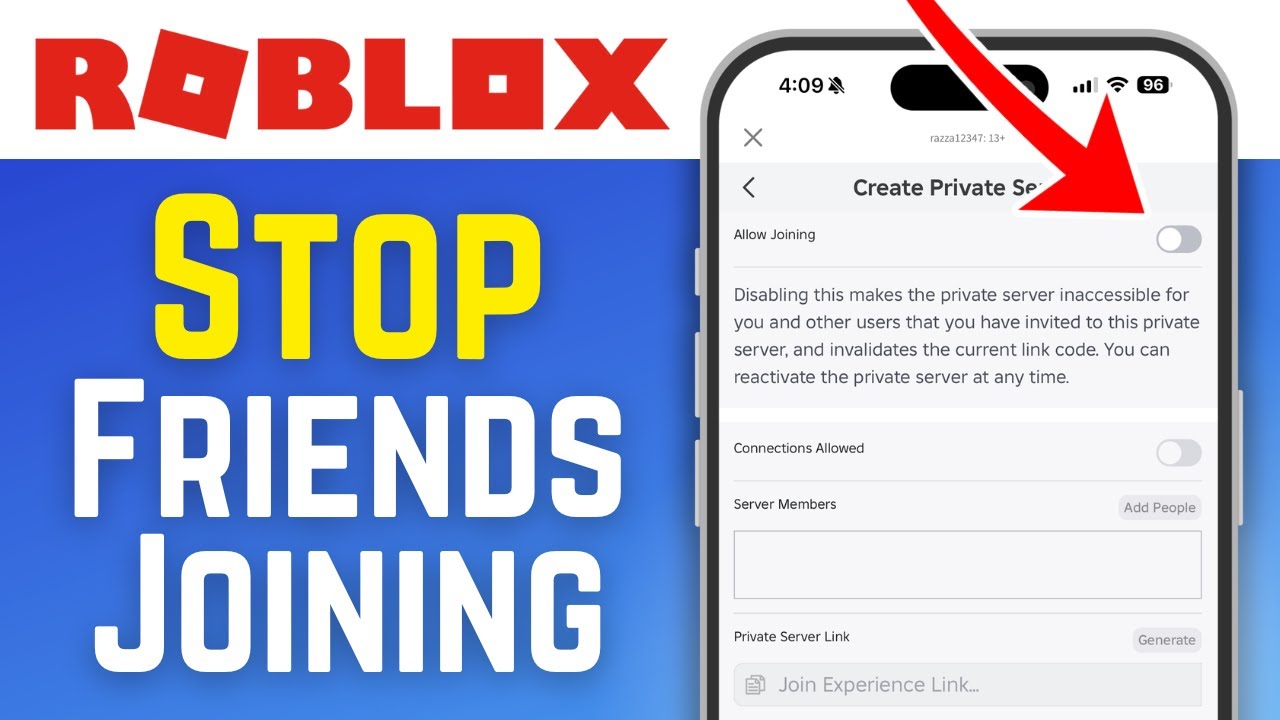

How To Not Join Friends In Roblox 2026 Guide YouTube . How To Not Join Friends In Roblox Step By Step YouTube . How To Not Auto Join Friends In Roblox YouTube . How To Stop Friends Joining Your Private Server In Roblox YouTube . How To Not JOIN FRIENDS In Roblox Grow A Garden YouTube


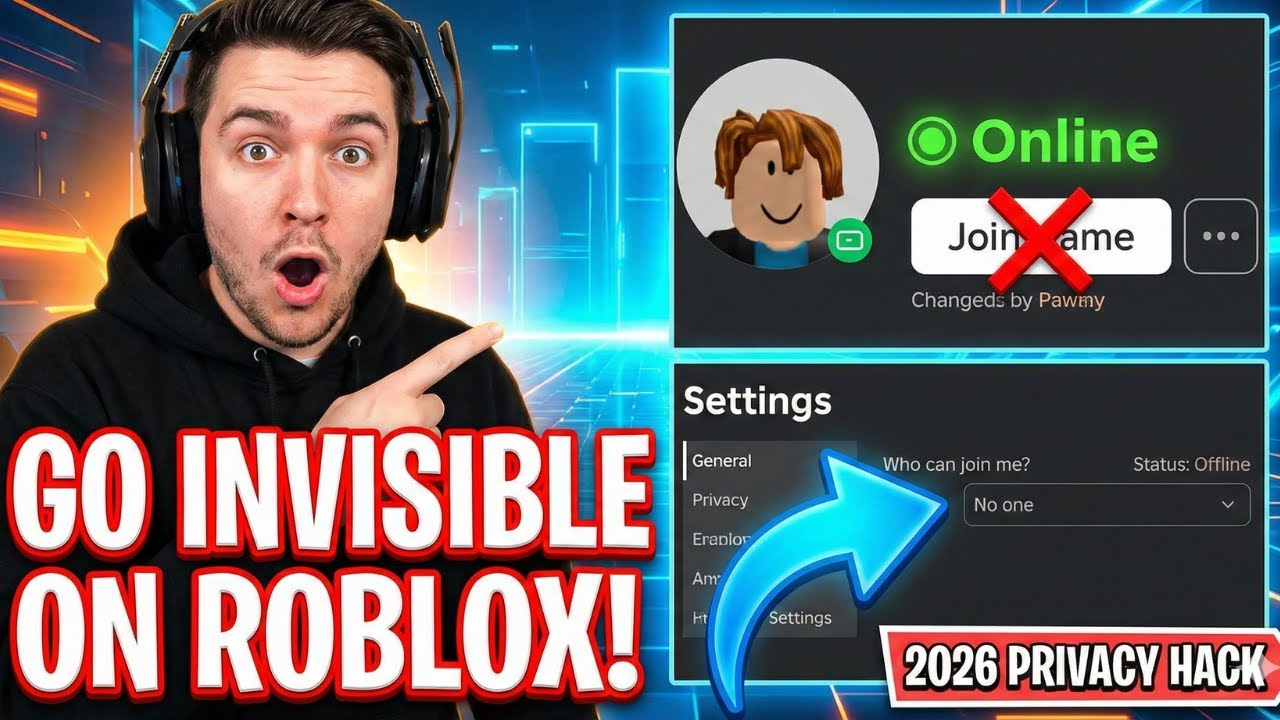
How To Join Anyone On Roblox Without Being Friends Step By Step 2026 . How To Disable Auto Join Friends In Roblox Complete Guide YouTube Hqdefault . How To Not Joins Friends In Roblox Secret Way To NOT Join Friends On . How To Appear Offline On Roblox Disable Join Friends Feature 2026 . How To Not Auto Join Friends In Roblox YouTube


How To Turn Joins Off In Roblox Roblox 2 1 . How To Remove Auto Join Friend Feature On Roblox 2025 Update YouTube Hqdefault . How To Disable Auto Joining Friends In Roblox YouTube . How To NOT Join Friends In Roblox YouTube . How To Join Someone On Roblox Without Being Friends With Them 2026



How To Stop Joining Friends On Roblox 2026 Guide YouTube . How To Join Someone On ROBLOX Without Being Friends 2024 YouTube . How To Join Someone With Their Joins Off Roblox Join Someone On . How To Join Anyone On Roblox Without Being Their Friends Gaming Tips . How To Disable Auto Joining Friends In Roblox Full Guide YouTube



How To Join A Person That Is Not Your Friend On Roblox 2025 YouTube . How To Not Join Friends In Roblox Quick Guide YouTube . How To Turn Joins Off In Roblox Mobile PC Infonuz How To Stop Joining Friends On Roblox . How To Disable Auto Joining Friends In Roblox Updated YouTube . ROBLOX HOW TO STOP JOINING FRIENDS 2026 BEST METHOD YouTube




How To Join A Person That Is Not Your Friend On Roblox Easy Fix YouTube . How To Join Someone On Roblox Without Being Friends Step By Step . How To Join Someone In Roblox Without Being Friends 2023 Last Update . How To JOIN Someone On Roblox Without Being Friends Roblox Tutorial . How To Join Someone In Roblox When They Re Not Your Friend 2024 Easy