Navigating Roblox parental control settings can feel like another mission for busy gamers balancing work family and life This comprehensive guide cuts through the noise offering clear actionable steps to ensure your childs online safety on Roblox It addresses common pain points like managing screen time limiting in-game purchases and understanding communication features without the hype or jargon that often bogs down tech explanations With 87 percent of US gamers playing regularly often logging over 10 hours a week and mobile gaming dominating the landscape it is more crucial than ever to have effective controls This resource provides practical solutions focusing on efficiency and peace of mind so you can set it up quickly and get back to your own gaming or family time Learn how to implement robust parental control settings protect against unwanted interactions and understand spending limits all tailored for the modern gaming family who values both fun and responsibility This month as social gaming continues to trend understanding Roblox parental controls is essential for any parent in the gaming community seeking a secure and enjoyable experience for their children.
Q: What is Roblox parental control and why do I need it?
A: Roblox parental control refers to a suite of settings within a child's Roblox account that allows parents to manage and restrict various aspects of their child's online experience. As busy adult gamers we need it to ensure children navigate the vast Roblox platform safely by controlling who they interact with what content they access and how much they can spend It provides peace of mind in a socially active gaming world.
Q: How do I set up a parental PIN on Roblox?
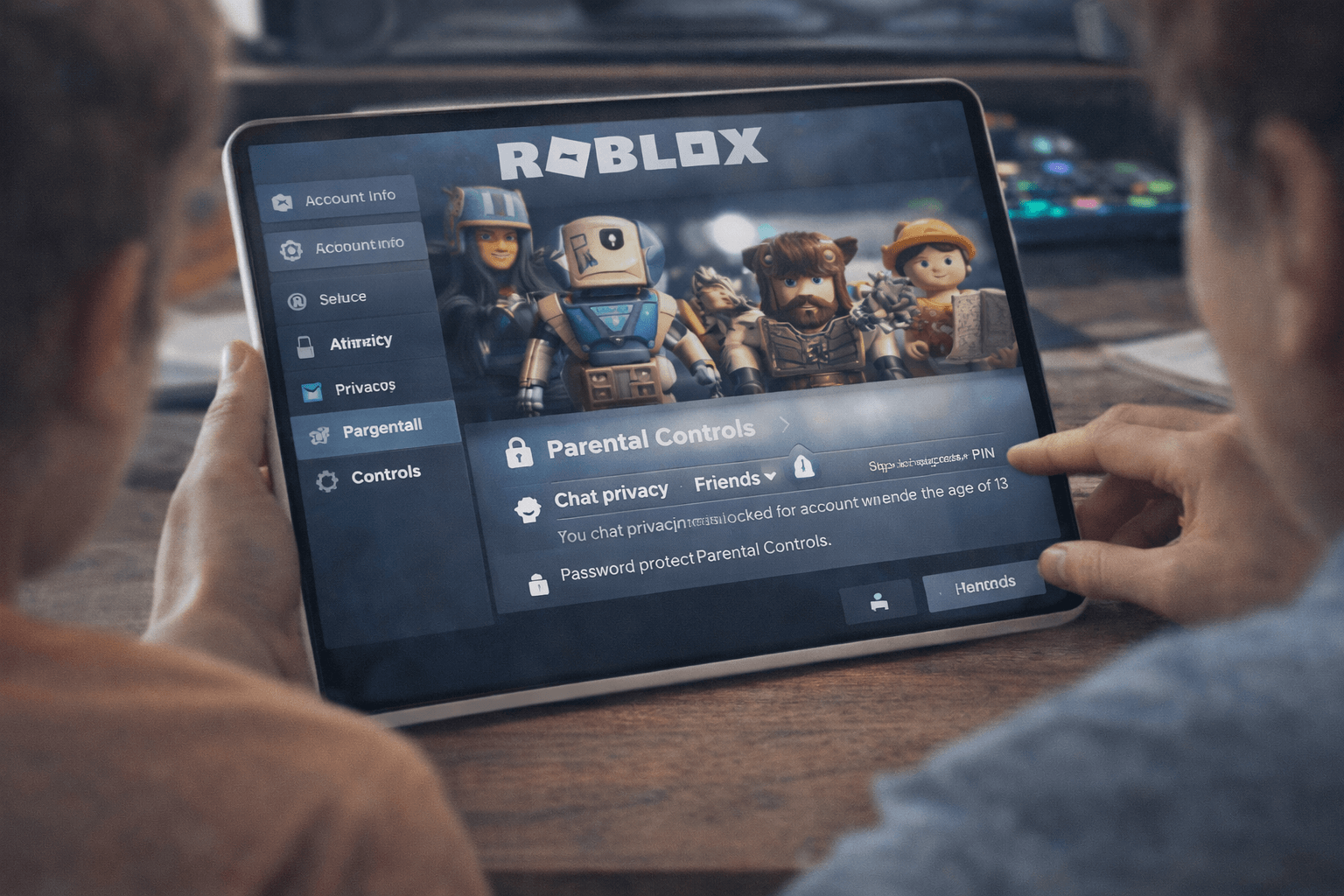
A: To set up a parental PIN log into your child's Roblox account click the gear icon for Settings navigate to 'Parental Controls' and toggle on 'Account PIN' You will then create a secure 4-digit PIN This PIN is crucial as it prevents your child from changing any settings you have configured without your permission making it the foundation of your Roblox parental control strategy.
Q: Can I restrict who my child chats with on Roblox?
A: Yes absolutely In your child's Roblox account go to 'Settings' then 'Privacy' Here you can adjust 'Who can chat with me in app' and 'Who can message me' options You can choose between 'No one' 'Friends' or 'All users' For maximum safety especially for younger children selecting 'No one' or 'Friends' is highly recommended to limit unwanted interactions.
Q: How do I prevent my child from making unauthorized purchases on Roblox?
A: To prevent unauthorized purchases use gift cards for Robux instead of linking direct payment methods Additionally implement platform-level spending controls such as 'Ask to Buy' features on iOS/Android or password protection for purchases on Xbox/PlayStation These robust Roblox parental control strategies ensure you approve all spending keeping budgets in check.
Q: What age restriction options are available for Roblox games?
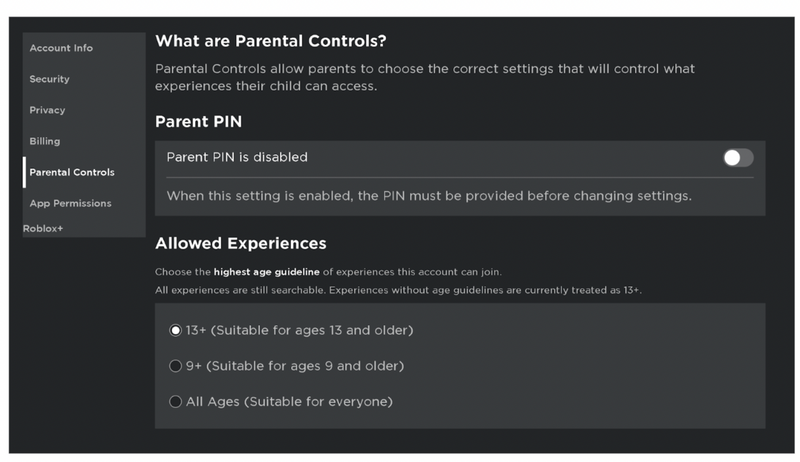
A: Roblox offers three main age restriction categories for experiences All Ages 9+ and 13+ These are based on content appropriateness regarding violence humor and interactive elements In your child's 'Parental Controls' settings with your PIN enabled you can select the maximum age rating your child can access automatically filtering out experiences above that level.
Q: How can I monitor my child's activity on Roblox without being intrusive?
A: You can monitor your child's activity by regularly checking their friends list recently played games and purchase history within their Roblox account Use your parental PIN to review settings periodically Foster open communication asking about their games and friends which builds trust and encourages them to share concerns more effectively than covert monitoring.
Q: What if my child finds a way around the Roblox parental controls?
A: If your child bypasses controls immediately change your parental PIN making it more complex and ensure all devices they use have consistent settings Reiterate that bypassing safety measures is unacceptable and discuss why these controls are in place for their protection Open honest conversations about online safety are often the most powerful tool in your Roblox parental control arsenal.
As a gamer who also juggles work family and life you know the importance of finding that sweet spot between relaxation and responsibility And when it comes to your kids gaming on platforms like Roblox that balance becomes even more critical You want them to explore create and socialize in a safe environment without you constantly looking over their shoulder or worrying about unexpected in-game purchases It is a common challenge for many parents in the US where 87 percent of us gamers play regularly often averaging over 10 hours a week and mobile gaming is king. This isn't just about limiting screen time its about empowering you with the tools to guide their experience effectively without feeling like you need a degree in cybersecurity.
We get it You have limited time and a full plate You need practical no-nonsense solutions that work This guide on Roblox parental control is designed for you the modern gamer parent It will walk you through everything from setting up basic security to managing communication and spending ensuring your child has a fun safe space to play on Roblox without adding more stress to your already busy schedule Let us dive into mastering Roblox parental controls so you can focus on enjoying your own gaming sessions or quality family time knowing your kids are secure.
Why are Roblox Parental Controls Essential for Busy Gamer Parents?
For parents who are also dedicated gamers understanding and implementing Roblox parental controls is not just a good idea it is a necessity In a world where social gaming platforms like Roblox are immensely popular and mobile gaming dominates kids can interact with millions of other users and access vast amounts of user-generated content quickly As an adult gamer you appreciate the social aspect of gaming but you also understand the potential pitfalls of online interaction.
Effective parental controls allow you to tailor your child's experience mitigating risks like exposure to inappropriate content unwanted communication from strangers or excessive in-game spending Without these controls your child might encounter situations that are not age-appropriate or fall victim to clever monetization tactics. By proactively setting up Roblox parental control you create a safer curated environment fostering positive online habits from a young age and providing much-needed peace of mind for you.
How Do I Set Up Roblox Parental Controls Step-by-Step?
Setting up Roblox parental controls is straightforward and can be done right from your childs account settings You do not need to be a tech wizard just follow these simple steps:
- Log In to Your Child's Account: First sign into your child's Roblox account on a browser. It is easier to navigate these settings on a computer rather than a mobile device for initial setup.
- Access Settings: Click on the gear icon located in the top right corner of the screen then select 'Settings' from the dropdown menu.
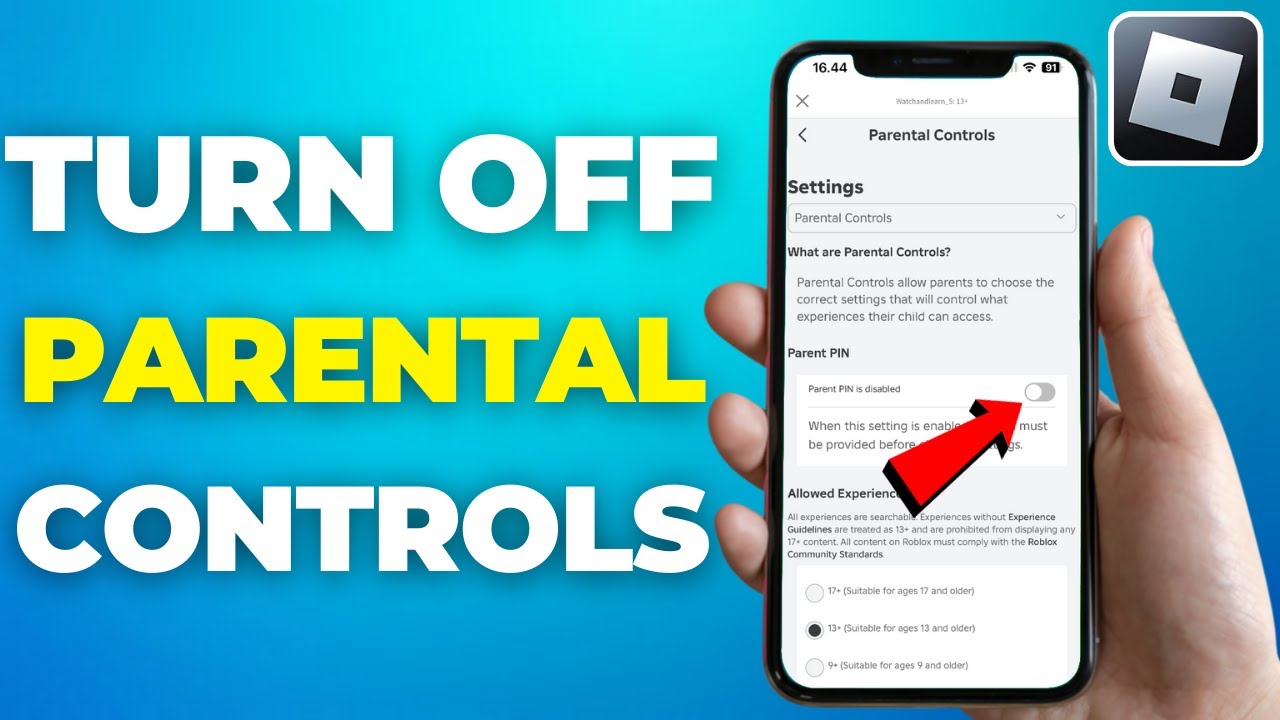
- Enable Account PIN: This is arguably the most crucial step In the 'Parental Controls' section toggle on 'Account PIN' You will be prompted to create a 4-digit PIN This PIN is essential because it prevents your child from changing settings without your permission protecting all your control choices. Keep this PIN secure and do not share it with your child.
- Verify Email: Ensure a parent's email address is verified on the account This allows Roblox to send important notifications and for you to recover account access if needed.
- Adjust Privacy Settings: Go to the 'Privacy' tab Here you can control who can message chat with join or invite your child These settings are critical for limiting unwanted interactions.
- Set Communication Preferences: In the 'Privacy' section you can choose who can chat with your child options range from 'No one' to 'Friends' or 'All users' For younger children 'No one' or 'Friends' is highly recommended.
- Review Spending Limits (Optional): While Roblox itself does not have a direct 'spending limit' feature within its parental controls you can manage this through platform-specific settings (e.g., Apple Google Play Xbox PlayStation) or by using gift cards instead of linking direct payment methods.
Taking these steps ensures a solid foundation for your child's safety and your peace of mind allowing you to balance their fun with your parental responsibilities.
What Are the Best Ways to Manage Chat and Communication on Roblox?
Managing chat and communication on Roblox is key to a safe experience especially with the prevalence of social gaming trends this month. Roblox offers robust settings to help you control who your child interacts with and what they can say:
- Privacy Settings (Who Can Chat): Navigate to the 'Privacy' section within your child's account settings and locate 'Who can chat with me in app' and 'Who can message me' options The strictest setting 'No one' completely disables private chat for the child. 'Friends' allows communication only with approved contacts. For younger players or those new to online interactions 'No one' is often the safest starting point.
- Chat Filters: Roblox automatically filters out inappropriate language and personal information This filter is always active for users under 13 and is a default for all users You cannot disable it which is a significant safety feature.
- Blocking and Reporting: Teach your child how to use the 'Block' feature if they encounter anyone making them uncomfortable Blocked users cannot interact with your child Similarly emphasize the importance of using the 'Report Abuse' feature for any content or behavior that seems inappropriate or makes them feel unsafe.
- Discuss Online Etiquette: Beyond technical controls have ongoing conversations with your child about appropriate online behavior and what information should never be shared online This proactive communication is invaluable.
By combining technical settings with open communication you create a comprehensive strategy for managing online interactions.
Can I Limit My Child's Spending on Roblox and How?
While Roblox does not have an in-built direct spending limit button within its parental control settings you can absolutely manage and limit your child's spending on Robux or in-game purchases effectively As adult gamers we understand the allure of cosmetic upgrades or battle passes so managing this for our kids is crucial.
- Use Gift Cards: This is arguably the most effective method Instead of linking a credit card purchase Roblox gift cards available at most major retailers and online allow you to pre-load a specific amount of Robux Once the gift card is redeemed that is the total amount your child can spend.
- Platform-Level Controls: If your child plays Roblox on a console (Xbox PlayStation) or a mobile device (iOS Android) these platforms have their own robust spending controls You can often set daily weekly or monthly spending limits or require a password for every purchase.
- Parental Account Approval: For mobile devices specifically enable 'Ask to Buy' features (Apple Family Sharing) or similar settings where every app or in-app purchase requires parental approval via your device.
- Disable Payment Methods: Do not save credit card information on your child's Roblox account or linked platform stores It is a simple but effective barrier.
By using these strategies you maintain full control over your child's spending habits on Roblox preventing unexpected bills and teaching them about financial boundaries within their gaming world.
How Do I Monitor My Child's Activity on Roblox?
Monitoring your child's activity on Roblox is an important aspect of ensuring their safety and understanding their online interactions especially as US gamers spend a significant amount of time on social platforms. Roblox provides several tools to help you keep an eye on things without being intrusive.
- Friend Requests and Followers: Regularly check your child's friends list and follower count You can do this by logging into their account and navigating to their profile This gives you an idea of who they are connecting with.
- Chat History: If chat is enabled you can usually review recent private chat messages (though Roblox filters make reviewing extensive history challenging and sometimes limits its usefulness). Focus more on the 'Who can chat with me' settings.
- Account Activity Logs: In the 'Settings' under 'My Transactions' or 'Purchase History' you can see any Robux purchases or redemptions This is crucial for monitoring spending. Also, checking 'Trade History' if applicable.
- Recently Played Games: Your child's profile often shows which games they have recently played This can give you insight into the types of experiences they are engaging with.
- Use Your Parental PIN: Since you set up the Account PIN regularly log in to their account with your PIN to review settings ensuring they have not been changed without your knowledge.
- Open Communication: The most effective monitoring tool is an open conversation Ask your child about their favorite games who they play with and what they are building or creating This fosters trust and makes them more likely to come to you if they encounter something uncomfortable.
Combining these methods provides a comprehensive approach to monitoring ensuring you stay informed about their Roblox experience.
What Age Restrictions Are Available and How Do They Work on Roblox?
Roblox has implemented robust age-based restrictions to help parents control the content their children can access aligning with the gaming industry's push for safer environments. These restrictions are tied to the account's stated age and are reinforced by the Roblox parental control system.
- Experience Guidelines: Roblox experiences (games) are assigned age recommendations:
- All Ages: Content generally suitable for everyone, minimal or mild fantasy violence.
- 9+: Content suitable for ages 9 and up, may contain mild violence, moderate crude humor, or infrequent simulated gambling.
- 13+: Content suitable for ages 13 and up, may contain moderate violence, strong crude humor, realistic simulated gambling, or unplayable user-generated content that may be inappropriate for younger users.
- Account Age Setting: When an account is created Roblox asks for the user's birth date This determines the default content access and chat filtering For users under 13 chat is automatically filtered very strictly and they cannot access 13+ experiences unless the parent explicitly allows it via the Account PIN.
- Parental Override with PIN: With your Account PIN enabled you can override some age-based restrictions For example you could allow a 9-year-old to access 13+ experiences but this should be done with careful consideration and discussion with your child. It is generally recommended to stick to age-appropriate experiences.
Understanding and utilizing these age restrictions empowers you to curate a safe and developmentally appropriate gaming environment for your child on Roblox.
Are There Third-Party Tools or Strategies for More Comprehensive Roblox Control?
While Roblox offers robust built-in parental controls for many busy parents who are also gamers additional layers of protection or monitoring can be beneficial especially for managing overall screen time or internet access beyond a single platform. These third-party tools and strategies complement Roblox parental control without replacing them.
- Router-Level Controls: Many modern home routers come with parental control features allowing you to block specific websites filter content or set schedules for internet access These controls apply to all devices connected to your home network providing a broad layer of protection.
- Operating System Parental Controls: Windows macOS iOS and Android all offer built-in parental controls that can manage app usage screen time limits and in-app purchases These are excellent for comprehensive device management.
- Dedicated Parental Control Apps: Services like Bark Qustodio or Family Link (Google) offer advanced features such as monitoring text messages social media activity and specific app usage They can provide detailed reports and alerts giving you a more holistic view of your child's online world.
- Time Management Apps: For controlling overall screen time rather than just Roblox specific time apps like OurPact or even built-in device features can help you set schedules and limits for device usage.
Remember that the best strategy often involves a combination of Roblox's internal settings your device's operating system controls and open communication with your child.
How Can I Talk to My Child About Online Safety on Roblox?
As a gamer you understand the social dynamics of online worlds which makes you uniquely positioned to have meaningful conversations with your child about online safety on Roblox. It is not about scare tactics but about empowering them with knowledge and trust.
- Start Early and Keep It Ongoing: Online safety is not a one-time talk Begin conversations when they first start playing and revisit them regularly as they grow and their online interactions evolve.
- Focus on Empowerment: Instead of saying 'Do not talk to strangers' try 'If anyone makes you uncomfortable you can block them or tell me' Teach them how to use the 'Report' and 'Block' features as their superpowers.
- Discuss Personal Information: Clearly explain what personal information should *never* be shared online – full name address school phone number photos of themselves or family.
- Talk About Cyberbullying: Explain what cyberbullying is and how to react if they experience it or witness it Emphasize that they should always come to you.
- Lead by Example: Model good online behavior yourself Respect privacy be kind and manage your own screen time effectively.
- Play With Them: Show interest in their Roblox games Play alongside them occasionally Ask them to show you what they are building or who their friends are This opens lines of communication naturally.
These conversations build trust and make your child more likely to come to you with concerns a far more powerful control than any technical setting.
What if my child bypasses the Roblox parental controls?
If your child manages to bypass the Roblox parental control settings it often means they found your Account PIN or they are using a different device without the controls The first step is to change your Account PIN immediately and make it more secure Ensure all devices they use have the parental controls applied consistently and reinforce the importance of not tampering with safety settings.
Can I restrict specific games or experiences on Roblox?
Yes you can restrict access to specific games or experiences on Roblox by utilizing the 'Allowed Experiences' setting within 'Parental Controls' in the account settings You can choose to allow 'All Ages' '9+' or '13+' This will limit your child to playing only experiences that fall within or below the selected age rating when your PIN is active.
How do I know if my child is being cyberbullied on Roblox?
Look for changes in behavior such as withdrawal sadness or anger after playing Roblox Check their chat logs (if enabled) and encourage open communication Teach them about the 'Report' and 'Block' features and assure them they will not get in trouble for coming to you with concerns Regular conversations are key.
Is there a way to limit Roblox playtime directly from the app?
Roblox itself does not have an in-app feature for setting playtime limits Instead you should use platform-level controls on their device For example on iOS use 'Screen Time' on Android use 'Digital Wellbeing' or Google Family Link and on consoles use their respective parental control settings to manage app and game usage duration.
What is the 'Account Restrictions' mode in Roblox?
The 'Account Restrictions' mode is a strict setting that automatically enables the highest privacy settings and limits your child to a curated list of experiences that have been verified by Roblox This mode is ideal for very young children or those who need the most restricted environment It prevents them from sending messages or chatting with others.
Can I see what Robux my child has spent?
Yes within your child's Roblox account go to 'Settings' then 'Billing' or 'My Transactions' to view their purchase history You will see a detailed log of all Robux purchased and how they were spent This helps you track their financial activity on the platform.
How do I update my child's age on Roblox?
To update your child's age you must log into their account go to 'Settings' then 'Account Info' and edit the birth date However once an account is set to 'under 13' for the first time it cannot be changed to 'over 13' until they naturally age up according to Roblox's system due to COPPA compliance This emphasizes the importance of entering the correct birth date initially.
Mastering Roblox parental control is not just about locking things down it is about creating a balanced safe and fun online environment for your children that you feel good about. As adult gamers we know the power of connection and creativity within games and by using these tools and fostering open communication you are setting your kids up for positive experiences This month as social gaming continues to thrive understanding these controls offers true peace of mind for parents balancing their gaming life with family responsibilities. Take control today and game on!
What is your biggest gaming challenge when balancing it with family life? Comment below!
Setting up account PIN for security managing chat and communication filters establishing spending limits controlling privacy settings monitoring play time with activity logs understanding age restriction levels for games securing account settings to prevent unauthorized changes.
35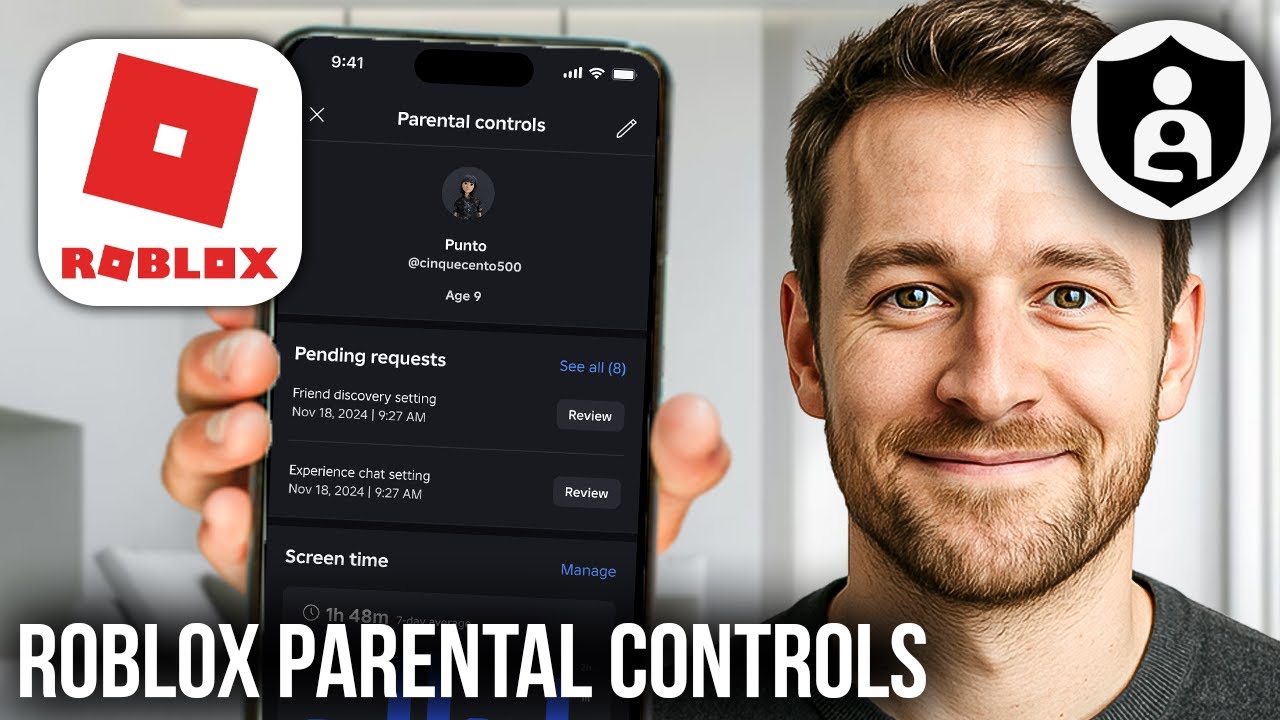



How To Setup Use Roblox Parental Controls YouTube . How To Setup Use Roblox Parental Controls Easy Guide YouTube . How To Manage Roblox Parental Controls A Complete Guide For Parents Roblox Parental. 2026 Parental Guide For Roblox Usage UnicMinds 2026 Parental Guide For Roblox Usage UnicMinds 1020x1024 . How To Set Up Roblox Parental Controls In SECONDS YouTube
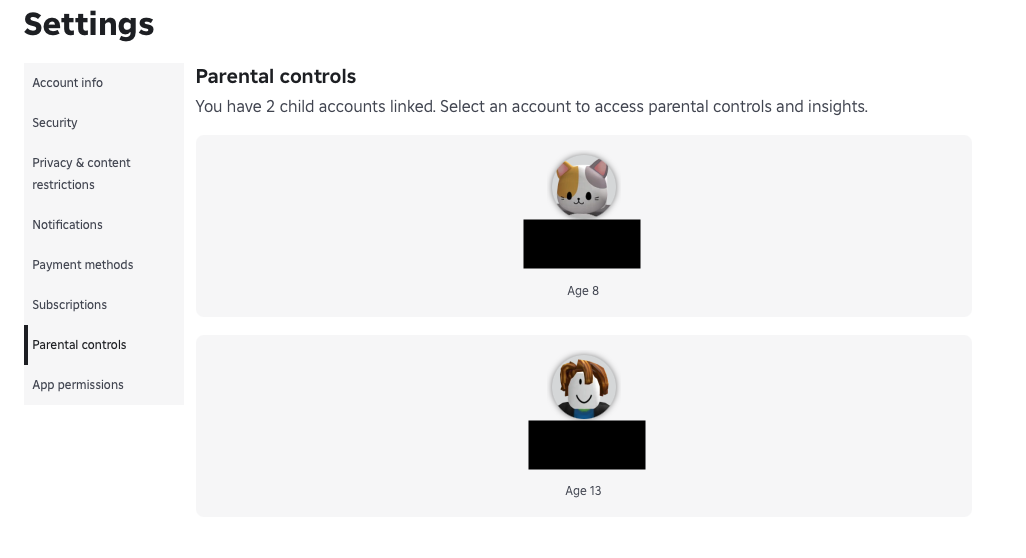
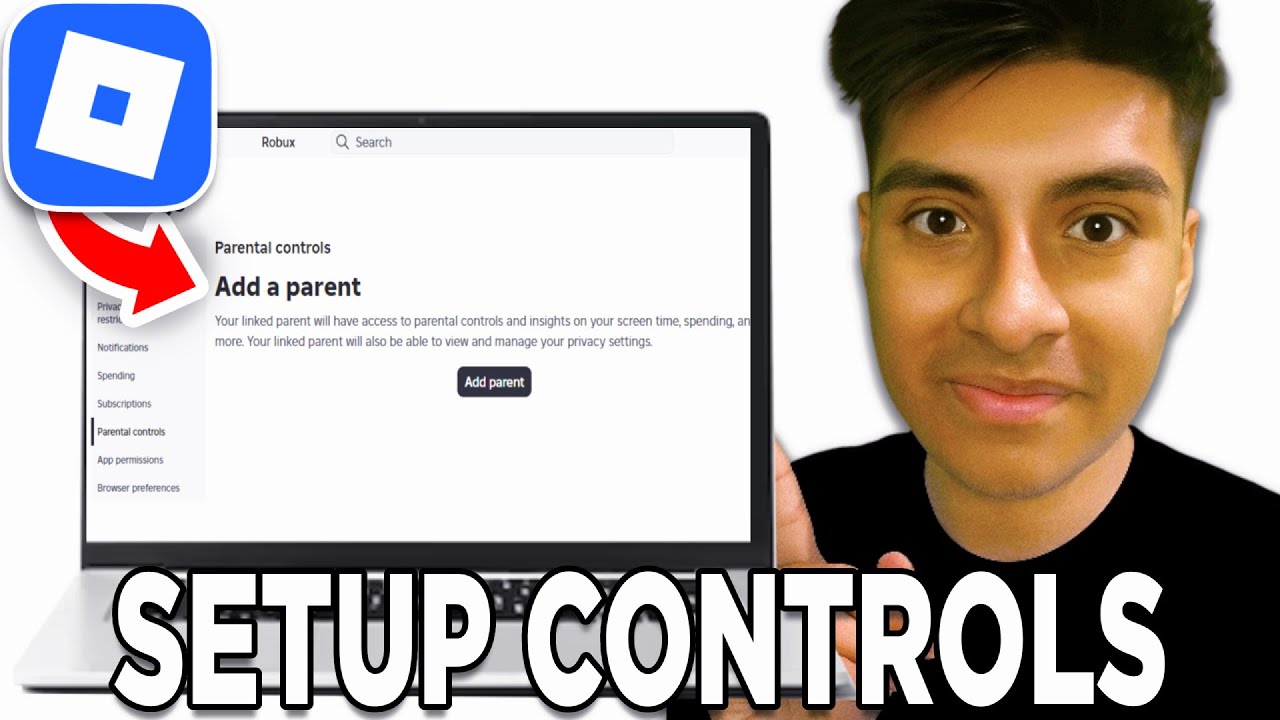

Roblox Parental Controls A Parent S Guide To Safety Settings Little Screenshot 3 Roblox Parental Controls Linked Child Accounts . How To Setup Roblox Parental Controls 2026 Tutorial YouTube . How To Set Parental Controls On Roblox YouTube . How To Set Up Parental Controls On Roblox 2026 YouTube . Roblox Parental Controls A Parents Guide Kidslox Roblox Parental Controls


How To Turn Off Parental Controls On Roblox 2026 YouTube . Roblox Parental Controls Time Limit 2026 Positive Expert Guide Impulsec V2 Yfgyf Pzz9e 1024x590 . How To Enable Parental Controls On Roblox Enable Parental Pins On . Roblox Parental Controls Time Limit 2026 Positive Expert Guide Impulsec V2 Yfh23 Tvlar 1024x590 . How To Turn Off Parental Controls In Roblox 2026 YouTube


How To Turn On Parental Controls On Roblox Easy Guide YouTube . Introducing Updates To Our Safety Protections And Parental Controls . How To Set Up Roblox Parental Controls A Step By Step Guide YouTube . Roblox Introduces New Age Based Accounts And Expanded Parental Controls. 7 Most Important Roblox Parental Controls Link Account Screen Shot 2022 11 28 At 6.35.57 PM
/images/2026/01/29/roblox-parental-controls_2.png)
How To Remove Parental Controls On Roblox 2026 Complete Tutorial . Two Ways To Put Parental Controls On Roblox Roblox Parental Control . How To Set Up Roblox Parental Controls 2026 All About Cookies Roblox Parental Controls 2 . Roblox Parental Controls A Parent S Guide To Safety Settings Little Screenshot 9 Roblox Group Party With Connections . How To Set Up Roblox Parental Controls 2026 All About Cookies Roblox On Iphone 1
/images/2026/01/29/roblox-parental-controls_4.png)

/images/2024/01/26/aura_parental_controls_review.jpg)

How To Set Up Roblox Parental Controls 2026 All About Cookies Roblox Parental Controls 4 . Parental Control Roblox Essential 2026 Powerful Safety Wins Impulsec V2 Yfmk8 Fanzd . Best Parental Control Apps 2026 For Roblox And MacBook Guide Screenwise The Best Parental Control Apps For 2025 Reviewed Isometric Diorama . How To Set Up Roblox Parental Controls 2026 All About Cookies Aura Parental Controls Review . Roblox Parental Controls Time Limit 2026 Positive Expert Guide Impulsec Image 244


Roblox Parental Controls 7 Steps You Need To Know Screen Shot 2022 11 28 At 6.47.51 PM . Roblox Parental Controls WeHellas Roblox Parental Control . 10 Things Parents Need To Know About Roblox DEKALIST Roblox Parental Control Guide Scaled . NEW HOW TO SETUP PARENTAL CONTROL ON ROBLOX SIMPLE GUIDE YouTube . How To Turn On Or Off Parental Control On Roblox Quick Easy