Looking to capture your epic gaming moments without complex setups or performance headaches? This guide on how to record yourself playing games is your go-to resource. Many busy gamers, often balancing work, family, and a love for gaming, want to preserve those incredible plays, funny fails, or meaningful social interactions. You want to share your passion, improve your skills, or just relive a fantastic session, but without the frustration of complicated software or expensive gear. This article cuts through the noise, offering practical, budget-friendly advice for PC, console, and mobile gamers. Learn about intuitive built-in tools, free software, optimal settings, and smart sharing strategies. Discover how to record yourself playing games efficiently, ensuring smooth performance and high-quality clips, whether you're a casual player or aspiring content creator. We tackle common issues like lag, storage, and editing, providing actionable tips that fit seamlessly into your busy lifestyle. Get ready to easily document and share your gaming journey.
Q: What is the absolute easiest way to start recording games right now?
A: The easiest way to start recording games immediately is to use the built-in features on your platform. On PC, press Windows key + G to open the Xbox Game Bar and click record. For PlayStation, use the dedicated Share button. Xbox consoles also have a capture option via the Xbox button. Nintendo Switch offers 30-second clips by holding the capture button. These methods require no extra downloads and have minimal setup.
Q: How can I record my PC gameplay without causing lag or performance drops?
A: To record PC gameplay without lag, prioritize using your graphics card's hardware encoder (NVIDIA NVENC or AMD AMF/VCE) in your recording software like OBS Studio or GeForce Experience. Lower your recording resolution to 1080p instead of 4K, match your game's refresh rate for frames per second, and optimize the bitrate. Ensure your game and recording software are on fast storage, ideally an SSD.
Q: Are there reliable free software options for capturing high-quality gaming videos?
A: Yes, absolutely. OBS Studio is a powerful, free, and open-source option for high-quality game recording and streaming, though it has a learning curve. For quick, easy captures, the Xbox Game Bar is built into Windows, while NVIDIA GeForce Experience and AMD ReLive offer optimized recording for their respective GPU users, all at no cost.
Q: Can I record console gameplay for longer periods without buying an expensive capture card?
A: While dedicated capture cards offer superior quality and control, you can record longer console gameplay using built-in features. PlayStation and Xbox allow you to save extended clips to your console's storage, which can then be transferred to a USB drive or uploaded. For more versatility without extreme cost, consider a budget-friendly USB capture card, often available for under 100-200 dollars.
Q: What are the essential settings for beginners to get decent quality game recordings?
A: For beginners, focus on three key settings: resolution, frame rate, and encoder. Aim for 1920x1080 (1080p) resolution, 60 frames per second (60fps) for smooth video, and always use your graphics card's hardware encoder (e.g., NVENC for NVIDIA) if available. A bitrate of around 15,000-25,000 Kbps for 1080p60 is a good starting point for clear, shareable clips.
Q: How do I easily edit my recorded game clips to share with friends online?
A: For easy editing, utilize free, user-friendly software like Windows Video Editor (built into Windows), iMovie (for Mac/iOS users), or online tools like Clipchamp. Focus on trimming unnecessary footage, adding simple text overlays, and perhaps some royalty-free background music. Keep your clips concise and highlight the best moments for quick sharing on platforms like Discord or social media.
Q: Does learning to record games add extra stress for busy adults who just want to relax?
A: Recording games should enhance your relaxation, not add stress. Start simple by using instant replay features to capture only significant moments, which saves time and storage. Focus on fun, and if it feels like a chore, take a break. Treat recording as an optional way to preserve and share joy, not a mandatory task, ensuring it aligns with your gaming-as-stress-relief goals.
Hey there, fellow gamers! Ever pulled off an amazing clutch, found an incredible hidden secret, or just had a laugh-out-loud moment with friends during a game, only to wish you could instantly re-live it or share it? You're not alone. Many of us, especially those juggling careers, family, and life's demands, find solace and excitement in gaming. We value those precious hours for relaxation, skill-building, and social connection. But sometimes, capturing those epic highlights can feel like a whole new quest in itself, adding more complexity than fun.
The good news is, recording yourself playing games has never been easier or more accessible. You don't need a professional streaming setup or a bank-breaking budget. This guide is tailored for you: the gamer who wants to record, share, and improve without the hassle. We'll dive into practical, no-nonsense solutions for how to record yourself playing games on any platform, ensuring your gaming performance stays smooth while your memories are perfectly preserved. Let's make sure those legendary moments don't just become fading memories!
Why Should Busy Gamers Bother Recording Their Gameplay?
For many gamers, the idea of adding another step like recording feels like more work. But actually, recording offers fantastic benefits that enhance your gaming experience. Firstly, it lets you relive those incredible plays or hilarious blunders, turning fleeting moments into lasting memories you can share. US gaming statistics show that 87% of gamers play regularly, often for 10+ hours a week, and a significant portion engages in social gaming. Sharing clips is a huge part of that social interaction, whether it's on Discord with your guild or a quick post for family.
Beyond sharing, reviewing your own gameplay is a powerful tool for skill improvement. Ever wonder why you keep getting caught in the same spot in your favorite FPS? Watching your own replay can provide crucial insights. For those with limited gaming time, this is incredibly efficient. Instead of grinding for hours, a quick review can pinpoint areas for improvement, helping you level up faster. It's also a fantastic way to document your gaming journey, seeing how far you've come in mastering a challenging title or building a base in a cozy sim. It's about capturing your unique story within the game world.
What's the Easiest Way to Start Recording My Games Right Now?
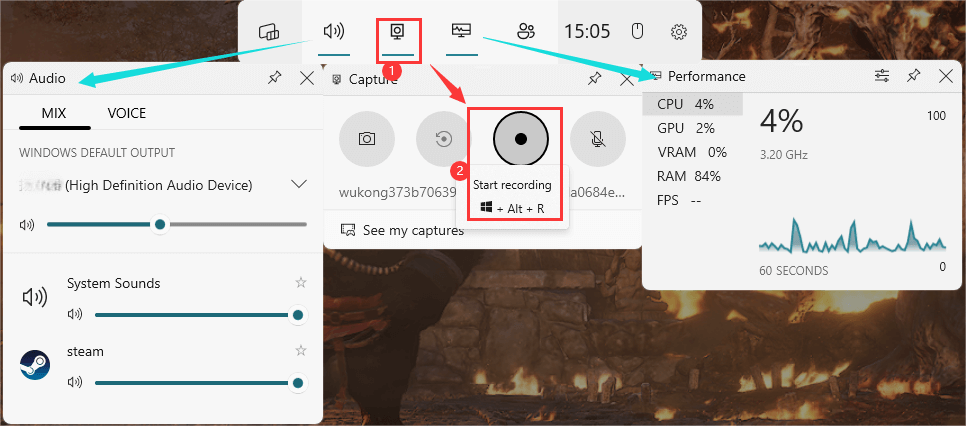
The simplest methods for how to record yourself playing games involve using built-in features on your platform. These are designed to be user-friendly and require minimal setup, making them perfect for busy gamers. On PC, if you have a modern Windows machine, the Xbox Game Bar is already there. Just press Windows key + G to open it, then hit the record button. It's surprisingly capable for quick clips and even longer sessions.
For console players, the options are equally straightforward. PlayStation consoles have a dedicated Share button that allows you to save recent gameplay or start new recordings. Xbox offers similar functionality through the Xbox button and its capture options. Nintendo Switch lets you hold down the capture button for a screenshot or a 30-second video. If you have an NVIDIA graphics card, ShadowPlay (part of GeForce Experience) is a fantastic, performance-friendly option. AMD users have ReLive. These tools are optimized to record without significantly impacting your game's performance, crucial for maintaining that smooth experience you crave after a long day.
How Do I Record on PC Without Lagging My Game?
This is a common pain point for many PC gamers: you want to capture your epic moments, but not at the expense of your frame rate. The key to how to record yourself playing games without lag lies in optimizing your settings and understanding your hardware. First, utilize hardware encoders like NVIDIA's NVENC or AMD's AMF/VCE. These encoders offload the recording process to dedicated hardware on your graphics card, significantly reducing the impact on your CPU and game performance.
When configuring your recording software (e.g., OBS Studio, GeForce Experience, Xbox Game Bar), pay attention to: Resolution: Recording at 1080p is usually sufficient for sharing and greatly reduces file size and processing power compared to 4K. Frame Rate: Matching your game's frame rate (e.g., 60fps) is ideal, but if performance dips, try 30fps. Bitrate: This affects video quality and file size. Start with a moderate bitrate (e.g., 10,000-20,000 Kbps for 1080p/60fps) and adjust as needed. Experiment with different settings until you find a balance between visual quality and performance that suits your system. Ensure your game is on an SSD if possible, as this improves overall system responsiveness.
Are There Free Recording Software Options That Actually Work?
Absolutely! You don't need to spend a dime to start creating high-quality game recordings. Here are some of the best free tools:
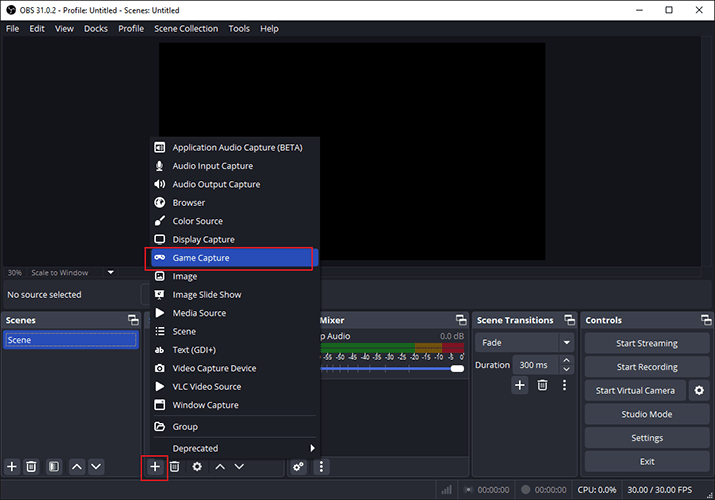
OBS Studio: This open-source powerhouse is the go-to for many streamers and content creators. It's incredibly versatile, offering robust control over video and audio sources, multiple scenes, and advanced settings. While it has a learning curve, countless tutorials exist, making it manageable. It utilizes hardware encoders effectively.
Xbox Game Bar (Windows): As mentioned, it's built into Windows 10/11 and offers quick, easy recording. Perfect for capturing short clips or entire sessions without needing to download anything extra.
NVIDIA GeForce Experience / AMD ReLive: If you have a compatible NVIDIA or AMD graphics card, these are highly optimized, free solutions. They offer instant replay features (saving the last X minutes) and traditional recording, with minimal performance impact due to hardware encoding.
ShareX: While more known for screenshots, ShareX can also record short video clips. It's a bit more advanced but offers many customization options.
These tools provide excellent value for money (free!) and are more than capable of helping you capture and share your gaming highlights.
Can I Record Console Gameplay Without Expensive Gear?
Yes, you can absolutely record console gameplay without splurging on high-end capture cards, though a capture card does offer more flexibility and quality. For PlayStation and Xbox, the built-in sharing features are your best friend. They allow you to record directly to your console's storage and then easily upload to social media, YouTube, or transfer to a USB drive.
For the Nintendo Switch, holding the capture button saves a 30-second clip, which is fantastic for quick highlights. To record longer sessions or get more control on any console, a budget-friendly capture card is a worthwhile investment. Brands like Elgato, AverMedia, and even generic USB capture cards can be found for under 100-200 dollars. These connect between your console and TV/monitor, sending the video signal to your PC for recording. For mobile gaming, which is increasingly dominant with US gamers, built-in screen recorders (iOS Screen Recording, Android's Game Launcher or third-party apps) are typically all you need to capture your mobile esports triumphs or cozy puzzle sessions.
How Can I Edit My Game Clips for Sharing Online?
Once you've captured your epic moments, a little editing can go a long way in making them shareable and impactful. You don't need professional software like Adobe Premiere Pro. Many free and user-friendly options exist:
Windows Video Editor: Built into Windows, this simple tool lets you trim clips, add text, slow-motion effects, and basic transitions.
iMovie (Mac/iOS): A fantastic free option for Apple users, iMovie is intuitive and offers a surprising array of features for quick edits.
DaVinci Resolve (Free Version): For those who want more professional features without the cost, DaVinci Resolve's free version is incredibly powerful. It has a steeper learning curve but is worth it if you plan on doing more complex editing.
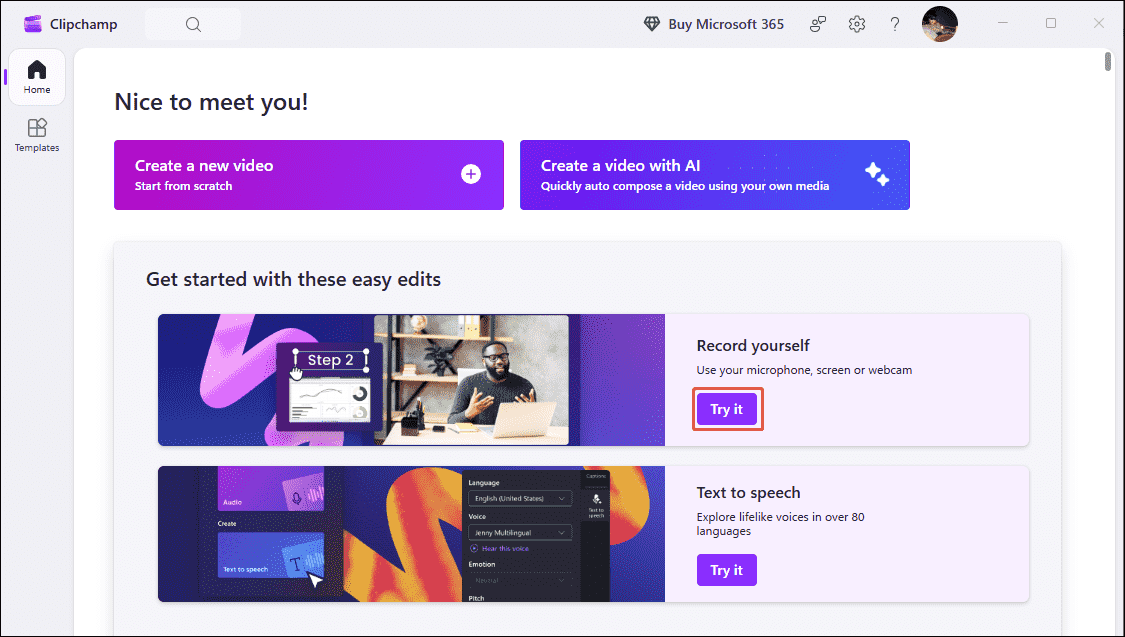
Online Video Editors: Websites like Clipchamp (now owned by Microsoft) or Kapwing offer browser-based editing for quick trims and merges.
Console Editing Tools: PlayStation and Xbox often have rudimentary editing features directly on the console, letting you trim clips before uploading.
Focus on trimming out boring parts, adding a short intro/outro, and perhaps some background music (ensure it's royalty-free!). Keep clips concise and engaging – remember, many viewers have short attention spans.
What Are the Best Settings for High-Quality Game Recordings?
Achieving high-quality game recordings without overtaxing your system involves a balance of several settings. Here's a breakdown for how to record yourself playing games with optimal visuals:
Resolution: Match your game's resolution (e.g., 1920x1080 for 1080p or 2560x1440 for 1440p). While 4K is impressive, it demands significant resources and storage. 1080p is the sweet spot for most sharing platforms.
Frame Rate (FPS): Aim for 60 frames per second (60fps) for smooth, professional-looking video. If your system struggles, 30fps is acceptable, especially for slower-paced games. Consistency is key, so if your game can only consistently hit 45fps, try recording at 30fps.
Bitrate: This is crucial for video quality. Higher bitrate means more data per second, resulting in a clearer image but larger file sizes. For 1080p at 60fps, a bitrate between 15,000 Kbps and 30,000 Kbps is generally recommended for H.264 (AVC) encoding. For 1440p, aim for 25,000-45,000 Kbps. Experiment to find your sweet spot; too low, and you'll see pixelation, especially in fast-moving scenes.
Encoder: Always prioritize hardware encoders like NVIDIA NVENC (new) or AMD AMF/VCE if available. Software encoders (x264) offer great quality but are CPU-intensive and can cause performance drops in games. Ensure your recording software is configured to use the correct hardware encoder.
Audio Settings: Record audio at 192kbps or 320kbps AAC for clear sound. Ensure your microphone is set up correctly if you're capturing commentary.
How Do I Share My Recorded Gameplay with Friends or on Social Media?
Sharing your gaming triumphs and humorous moments is often the whole point of learning how to record yourself playing games! There are numerous platforms and methods:
YouTube: The undisputed king for video content. Create a channel, upload your clips, and share the link. You can optimize for public viewing or keep videos unlisted for private sharing with friends. YouTube supports high resolutions and long video lengths.
Twitch Clips: If you stream, Twitch's clip feature lets you quickly grab 60-second snippets of live or past broadcasts for instant sharing.
Discord: Perfect for sharing within your gaming communities. You can upload video files directly to chat, though there are file size limits for free users. For longer videos, upload to YouTube or a cloud service and share the link.
Social Media (Facebook, X/Twitter, Instagram, TikTok): Each platform has different video length and format preferences. TikTok and Instagram Reels thrive on short, impactful clips. X/Twitter has a 2 minute 20 second limit for most users. Adapt your content to the platform.
Cloud Storage (Google Drive, OneDrive, Dropbox): For very large files or private sharing, upload to a cloud service and share a link with specific friends or groups.
Always consider your audience and the platform's limitations. Shorter, punchier clips generally perform better on most social media. For more in-depth content, YouTube is the way to go.
Balancing Gaming and Life: Does Recording Add More Stress?
It definitely shouldn't! For many gamers (average age ~36, often balancing work and family), gaming is a vital outlet for relaxation and fun. The goal of learning how to record yourself playing games is to enhance that experience, not complicate it. If it feels like a chore, you're doing it wrong.
Here's how to keep it stress-free: Start small. Don't feel pressured to record every session or create elaborate montages. Use instant replay features to capture only the moments you deem worthy, saving storage and time. Focus on fun. If you're not enjoying the game, you won't enjoy watching or editing the recording. Treat recording as an optional bonus, not a requirement. Integrate it naturally. Use your console's share button or PC's Game Bar for effortless, quick captures. Don't worry about perfection; authenticity often resonates more. Remember, gaming is primarily for your enjoyment and connection with others. Recording is just a cool way to extend that joy. US gamers are increasingly using gaming as stress relief, and recording should align with that purpose, not detract from it.
Conclusion
Learning how to record yourself playing games doesn't have to be a daunting task. With the right tools and a few smart settings, you can effortlessly capture your most memorable moments, improve your skills, and share your passion with friends and the wider gaming community. From built-in console features and free PC software like OBS Studio to understanding optimal settings and simple editing tricks, you're now equipped to document your gaming journey without sacrificing performance or adding undue stress to your busy life. Go on, hit that record button, and let your gaming story unfold!
What's your biggest gaming challenge when it comes to capturing moments? Comment below and let's conquer it together!
FAQ Section
What's the best free software for recording PC games?
For comprehensive features, OBS Studio is widely considered the best free option, offering extensive customization and hardware encoding support. For simplicity, the Xbox Game Bar (Windows) or NVIDIA GeForce Experience / AMD ReLive (if you have the compatible GPU) are excellent built-in choices.
Does recording gameplay slow down my computer?
It can, but it largely depends on your system specifications and recording settings. Using hardware encoders (like NVENC for NVIDIA or AMF for AMD) significantly reduces the performance impact. Optimizing settings like resolution and bitrate also helps maintain smooth gameplay while recording.
How can I record my voice while playing games?
Most recording software (OBS Studio, Xbox Game Bar) allows you to select a microphone input alongside your game audio. Ensure your microphone is connected, recognized by your system, and selected within your recording software's audio settings. You can often adjust volumes separately for game and mic.
Is a capture card necessary for console recording?
Not always. Modern consoles like PlayStation and Xbox have built-in recording features that allow you to capture and share clips directly. However, a dedicated capture card offers higher quality, longer recording times, and more control over your footage, especially for streaming or professional content creation.
What's the ideal video format for sharing game clips?
MP4 (H.264 codec) is the most widely compatible and efficient format for sharing game clips online. It offers a good balance of quality and file size, making it suitable for platforms like YouTube, Discord, and various social media.
How much storage space do game recordings take up?
Storage usage varies significantly with resolution, frame rate, and bitrate. A 1080p 60fps recording at a moderate bitrate (e.g., 20,000 Kbps) can consume roughly 9 GB per hour. 4K recordings can be several times larger. Consider an external hard drive or cloud storage for archiving longer footage.
Effortless gameplay recording solutions for PC, console, and mobile; Optimize settings for performance; Free software options; Easy editing and sharing tips; Balance gaming and life without added stress; Enhance your gaming experience by capturing memorable moments.
35

EaseUS How To Record Yourself Playing Video Games . How Do You Record Yourself Playing Video Games 2 Easy Methods How Do You Record Yourself Playing Video Games Thumbnail . Complete Guide On How To Record Yourself Playing Video Games How To Record Yourself Playing Video Games 1 . 3 Free Ways How To Record Yourself Playing Video Games On PC . 3 Ways To Record Steam Gameplay 2023 Update Itop Screen Recorder Game Mode Turn On Webcam Speaker


How To Record Film Yourself While Playing Video Games On Windows Mac . How Do You Record Yourself Playing Video Games 2 Easy Methods How Do You Record Yourself Playing Video Games 6 . Best Way To Record Yourself While Playing On PC How To Record Yourself While Playing A Game On PC 1 . Come Registrarsi Mentre Si Gioca Ai Videogiochi Su PC Console E Choose Game Recorder . Can You Record Games On Youtube Tv At Stella Sexton Blog



3 Free Ways How To Record Yourself Playing Video Games On PC . 4 Maneiras De Se Gravar Jogando Videogame Em Qualquer Dispositivo Record Yourself Playing Games On Phone . 4 Formas De Grabarte Jugando Videojuegos En Cualquier Dispositivo Record Yourself Playing Video Games . How To Use Steam Game Recorder CORSAIR Steam Game Recorder S.width 000.format Jpeg . 3 Free Ways How To Record Yourself Playing Video Games On PC



How To Use Shadowplay By Nvidia GeForce To Record Yourself Playing . 3 Free Ways How To Record Yourself Playing Video Games On PC . Complete Guide On How To Record Yourself Playing Video Games How To Record Yourself Playing Video Games Thumbnail . Kuinka Tallentaa Itse Si Pelaamalla Videopelej Record Yourself Playing Video Games . 3 Free Ways How To Record Yourself Playing Video Games On PC

How To Record Yourself Playing Roblox YouTube . How To Record Yourself While Playing A Game 4 Easy Ways How To Record Yourself Playing Video Games . What Recording Software Do YouTubers Use 2026 Guide Xbox Game Bar Record Wukong . 3 Free Ways How To Record Yourself Playing Video Games On PC . How To Record A Video Of Yourself On Mac 2026 How To Record Video Yourself On A Mac

How Do You Record Yourself Playing Video Games 2 Easy Methods How Do You Record Yourself Playing Video Games 8 . How Do You Record Yourself Playing Video Games 2 Easy Methods How Do You Record Yourself Playing Video Games 4 . How Do You Record Yourself Playing Video Games 2 Easy Methods How Do You Record Yourself Playing Video Games 7 . How Do You Record Yourself Playing Video Games 2 Easy Methods Game Recorder Thumbnail . Why Musicians Need To Record Themselves More Play In The Zone Record Yourself

How To Record Your Gameplay YouTube . 3 Free Ways How To Record Yourself Playing Video Games On PC . Complete Guide On How To Record Yourself Playing Video Games How To Record Yourself Playing Video Games 3 . How To Record Roblox On A Windows PC Bandicam Record Roblox Game . How To Record Yourself While Playing A Game On Your Computer Democreator Game Recording