Ever found yourself staring at a generic desktop background wishing for something that truly reflects your gaming passion, especially your time spent building and exploring in Roblox? For many US gamers balancing work, family, and a love for virtual worlds, personalizing their digital space is a small yet significant way to keep the gaming spirit alive throughout the day. This comprehensive guide on how to make Roblox wallpaper will help you transform your screens into dynamic tributes to your favorite Roblox experiences and avatars. Whether you are looking to capture epic in-game moments, design a sleek aesthetic featuring your unique character, or simply want to refresh your digital environment with vibrant Roblox-themed art, we have got you covered. This article dives deep into practical, step-by-step methods, exploring various tools and techniques to create stunning custom Roblox wallpapers for any device. Discover how to leverage in-game screenshots, graphic design tools, and even AI-powered resources to craft personalized backgrounds that resonate with your gaming identity, all while keeping performance and budget in mind. Elevate your screen and let your Roblox adventures shine beyond the game. Join us as we unlock the secrets to creating awesome Roblox wallpapers that stand out and inspire your next play session, even when you are away from the keyboard or console.
Q: How do I take a high-resolution screenshot of my Roblox avatar?
A: To capture a high-resolution screenshot of your Roblox avatar, first, ensure your in-game graphics settings are maxed out by pressing 'Esc' and setting 'Graphics Quality' to '10'. Then, press 'Shift + P' to enter camera mode, which hides the UI. Position your avatar, find the best angle, and then use your operating system's native screenshot tool (e.g., Snipping Tool on Windows, Command+Shift+4 on Mac) or a third-party app like OBS Studio for optimal clarity. This method minimizes blur and pixelation, giving you a sharp base for your custom wallpaper.
Q: Can I use free software to edit my Roblox wallpaper images?
A: Absolutely! There are several excellent free software options for editing your Roblox wallpaper images. For basic to intermediate tasks like cropping, resizing, color adjustments, and adding simple text, Canva (Free Version) is incredibly user-friendly with numerous templates. For more advanced photo manipulation, such as background removal, layering, or detailed touch-ups, Photopea is a fantastic web-based tool that functions very similarly to Adobe Photoshop, offering professional-grade features without any cost. These tools provide all you need to transform your screenshots into stunning wallpapers.
Q: Where can I find Roblox-themed fonts or graphics for my wallpaper?
A: For Roblox-themed fonts and graphics, a great starting point is searching on sites like Dafont.com or Font Squirrel for "Roblox" or pixelated/gaming-style fonts. Many designers create free-to-use fonts inspired by the game's aesthetic. For graphics, explore communities on DeviantArt or Reddit (e.g., r/RobloxGFX), where creators often share transparent PNGs of Roblox characters, logos, or icons. Always check the licensing for commercial use, but for personal wallpaper use, most are fine. Additionally, some free design apps like Canva include extensive libraries of shapes and elements that can be customized to fit a Roblox theme.
Q: Is it possible to make a live Roblox wallpaper for my desktop?
A: Yes, it is possible to create a live Roblox wallpaper for your desktop, but it requires additional software beyond a static image. For Windows users, applications like Wallpaper Engine (available on Steam for a small one-time fee) are highly popular. You can import video clips of your Roblox gameplay or animations, or even interactive scenes created by others, and set them as your animated background. On macOS, apps like Dynamic Wallpaper Engine offer similar functionality. While Roblox doesn't natively support live wallpapers, these third-party tools provide a fantastic way to bring dynamic Roblox action to your screen, enhancing your immersive gaming experience even when idle.
Q: How do I ensure my custom Roblox wallpaper fits all my devices?
A: To ensure your custom Roblox wallpaper fits all your devices perfectly, the key is to design with multiple aspect ratios in mind. Start by creating your wallpaper at a high resolution (e.g., 3840x2160 for 4K) to maintain clarity when scaled. Then, consider creating different crops or versions for common aspect ratios: 16:9 for most desktops, 21:9 for ultrawide monitors, and 9:16 for vertical mobile screens. Center your main subject to avoid it being cut off on smaller screens or different crops. Many design tools allow you to set multiple "artboards" or canvas sizes, making it easier to tailor your image for various devices, ensuring a seamless look across your entire digital ecosystem.
Q: What are the best colors to use for a Roblox wallpaper to make it visually appealing?
A: The best colors for a visually appealing Roblox wallpaper often depend on the specific theme or mood you're aiming for, but generally, vibrant and complementary palettes work well. Roblox's blocky aesthetic lends itself to bright, saturated colors. Consider using complementary colors (like blue and orange) or analogous colors (like blues, greens, and purples) for a harmonious look. Soft pastels can create a cozy, friendly vibe, while bold, contrasting colors can emphasize action or a futuristic theme. Leveraging the color schemes from your favorite Roblox games or your avatar's outfit can also provide excellent inspiration, creating a coherent and eye-catching background that truly stands out.
Q: How can I remove the background from a Roblox screenshot to isolate my avatar?
A: Removing the background from a Roblox screenshot to isolate your avatar is a common task for creating personalized wallpapers. One effective method is to take your screenshot in Roblox Studio on a solid-color background, like a pure green screen. Then, use a graphic design tool like Photopea (free online), Canva Pro (paid, but free trial available), or desktop software like GIMP (free) or Photoshop. In these editors, you can use the "Magic Wand" tool, "Select Subject" feature, or "Pen Tool" for precise selection, then delete the background layer. Many online background remover tools also offer a quick, AI-powered solution, although precision can vary. This allows you to place your avatar onto any new background you desire.
Are you a dedicated gamer, perhaps balancing a career and family, who spends precious evening hours unwinding in the expansive worlds of Roblox? If you're like 87% of US gamers who regularly dive into virtual adventures, often for 10 or more hours a week, you understand the immersive appeal. But when you step away from the keyboard or mobile screen, does your desktop or phone background truly reflect that passion? Many of us settle for generic wallpapers, even though our digital lives are rich with custom avatars, epic builds, and memorable moments from games like Adopt Me, Brookhaven, or Arsenal. This disconnect is a common pain point: how to carry a piece of that unique Roblox identity into our everyday digital spaces without needing complex design skills or a huge time commitment.
You want a wallpaper that screams 'you' – not just a random game image, but something personalized, perhaps featuring your meticulously designed avatar or a stunning screenshot from your favorite Roblox experience. The good news is, creating your own custom Roblox wallpaper is far easier and more accessible than you might think. This guide is your ultimate resource on how to make Roblox wallpaper, designed specifically for busy gamers who value efficiency, quality, and a touch of personal flair. We will walk you through everything from capturing the perfect in-game moment to using free design tools, ensuring you can craft a striking wallpaper that not only looks great but also reminds you of the fun and creativity Roblox offers. Get ready to transform your screens and showcase your gaming persona with pride, bridging the gap between your virtual adventures and your daily digital life.
What is a Roblox Wallpaper and Why Should I Make One?
A Roblox wallpaper is essentially any digital background image for your computer, tablet, or smartphone that features themes, characters, or scenes from the Roblox universe. This could be anything from a high-resolution screenshot of your avatar in a favorite game, custom-designed fan art, or even minimalist representations of Roblox logos and aesthetics. In a world where mobile gaming continues its dominance and social play is paramount – with many gamers connecting through platforms like Discord – personalizing your digital environment extends your gaming identity beyond the game itself.
Making your own Roblox wallpaper offers several compelling benefits. Firstly, it provides a unique form of self-expression, allowing you to showcase your specific avatar, favorite game, or a memorable in-game achievement. It is a subtle nod to your passion that resonates with the current trend of integrating gaming more seamlessly into everyday life. Secondly, for gamers who balance work and family, a personalized wallpaper can be a quick, positive visual anchor, reminding you of relaxation and fun throughout a busy day. Finally, it lets you stay current with your favorite Roblox trends or creations, acting as a dynamic canvas that you can update whenever a new event or character captures your imagination.
What Are the Best Tools for Creating Roblox Wallpapers?
Creating custom Roblox wallpapers does not require expensive software or professional design expertise. Many excellent tools are available, ranging from simple in-game features to more robust, free-to-use graphic design applications. For quick captures, Roblox's built-in screenshot function (Print Screen key or screenshot tools like Snipping Tool/Greenshot on PC, Command+Shift+3/4 on Mac) is a great starting point. These capture raw moments that you can then refine.
For editing and design, free online tools like Canva or Photopea (a web-based Photoshop alternative) are incredibly powerful. Canva offers user-friendly templates and drag-and-drop interfaces perfect for adding text, overlays, and effects. Photopea provides more advanced editing capabilities, ideal for intricate touch-ups, color correction, and layering. For those who want to experiment with more artistic or AI-generated styles, options like Midjourney or DALL-E (though often subscription-based) can turn text prompts into unique Roblox-inspired art. These tools cater to various skill levels and budgets, ensuring everyone can craft a stunning wallpaper.
How Can I Capture High-Quality Roblox Screenshots for My Wallpaper?
Capturing high-quality screenshots in Roblox is crucial for a crisp, professional-looking wallpaper. The key is to maximize your game settings and use the right capture methods. First, go into your Roblox in-game settings (usually by pressing 'Esc') and set your graphics quality to the highest possible level. If your device can handle it, select 'Graphics Mode - Manual' and drag the slider all the way to '10'. This ensures textures and details are rendered at their best.
Next, find the perfect moment or pose. Disable the HUD (Heads-Up Display) by pressing 'Shift + P' to enter camera mode, or hide it through settings if available in the specific game. Frame your shot carefully, perhaps using the 'Free Camera' if the game supports it for unique angles. For capturing, avoid using basic print screen if possible. Instead, use dedicated screenshot software like NVIDIA Ansel (for GeForce users) or OBS Studio (which has a screenshot function) as they often produce higher-resolution images. On mobile, use your device's native screenshot function (e.g., power button + volume down on Android, side button + volume up on iOS). Aim for a resolution that matches or exceeds your screen's native resolution for the best results.
How Do I Edit My Roblox Screenshots into a Custom Wallpaper?
Once you have your high-quality Roblox screenshot, the editing process transforms it into a custom wallpaper. This often involves cropping, adjusting colors, and adding personal touches. Start by opening your screenshot in a photo editor like Canva, Photopea, or even basic tools like Windows Photos or macOS Preview. The first step is usually cropping. Resize the image to match your screen's aspect ratio (e.g., 16:9 for most desktops, 9:16 for portrait mobile). Avoid stretching or distorting the image.
Next, enhance the visuals. Adjust brightness, contrast, and saturation to make the colors pop. Many editors have auto-enhance features that can do this with one click, or you can manually tweak to your preference. Consider adding a subtle filter to set a mood. If you want to feature your Roblox avatar, you might use a tool with background removal features (like Canva Pro or Photopea's magic wand tool) to isolate your character from the original screenshot, then place it onto a new background. Finally, add any text or subtle overlays, like your Roblox username or a favorite quote, making sure they do not clutter the image. Remember, the goal is a visually appealing and clean background that complements your screen.
Can I Design a Roblox Avatar Wallpaper from Scratch?
Absolutely, designing a Roblox avatar wallpaper from scratch offers unparalleled customization and creativity. This method is perfect if you want a clean, stylized look that focuses purely on your unique avatar without busy game backgrounds. The process typically involves exporting your avatar and then using graphic design software.
Many Roblox creators use free tools like Roblox Studio to achieve this. You can load your character model into Studio, pose it, adjust lighting, and then take a screenshot with a transparent background (often by setting the 'ClearColor' property of the workspace to transparent and taking a high-res screenshot, or rendering it with a green screen backdrop for easy keying out later). Once you have your avatar image, import it into a design tool like Canva or Photopea. Here, you can design a custom background using solid colors, gradients, abstract shapes, or even other Roblox-themed elements you create or find. Add effects like shadows, glow, or even subtle textures to make your avatar stand out. This method allows you complete control over the aesthetic, from minimalist to vibrant, perfectly matching your personal style and current gaming vibe.
Are There Free Resources or Apps to Make Roblox Wallpapers?
Yes, the internet is brimming with free resources and apps that make creating Roblox wallpapers accessible to everyone, regardless of budget or design experience. For image editing, Canva Free is an excellent choice, offering a vast library of templates, fonts, and graphic elements, along with intuitive drag-and-drop functionality. Photopea provides professional-grade editing features entirely within your web browser, mimicking Adobe Photoshop without the cost.
For finding base images or inspiration, royalty-free stock photo sites like Pexels or Unsplash can offer abstract backgrounds or textures that complement Roblox themes. Additionally, communities on Reddit (e.g., r/robloxgfx) and DeviantArt often share free-to-use Roblox fan art or renders, though always ensure you respect creator attribution rules. On mobile, apps like PicsArt and Lightroom Mobile offer robust editing suites for free (with in-app purchases for advanced features), perfect for on-the-go wallpaper creation. These tools empower you to craft high-quality wallpapers without spending a dime, reflecting the budget-conscious approach many gamers take while balancing their hobbies with life's other demands.
How Do I Set My New Roblox Wallpaper on PC, Mac, and Mobile?
Setting your freshly created Roblox wallpaper is straightforward across different devices. The process is designed to be user-friendly, allowing you to quickly display your personalized gaming tribute.
For Windows PC:
- Right-click on an empty space on your desktop.
- Select "Personalize" from the context menu.
- Under "Background," choose "Picture" from the dropdown menu.
- Click "Browse" and navigate to the folder where your Roblox wallpaper image is saved.
- Select the image and click "Choose picture."
- You can then choose a "Fit" option like "Fill," "Fit," or "Center" depending on how you want the image to appear.
For macOS:
- Click the Apple menu in the top-left corner of the screen and select "System Settings" (or "System Preferences" on older macOS versions).
- Click "Wallpaper" (or "Desktop & Screen Saver").
- Click the "Add Folder" or "Add Photo" button and select your Roblox wallpaper image.
- Click on the image to set it as your wallpaper.
- Adjust options like "Fill Screen" or "Fit to Screen" as needed.
For Mobile (iOS/Android):
- Open your device's "Gallery" or "Photos" app.
- Locate your Roblox wallpaper image.
- Tap the image, then look for an icon typically represented by three dots or a "More" option, or a direct "Set as" button.
- Select "Set as wallpaper" (or "Set as Lock screen," "Set as Home screen," or "Set as Both").
- You might be prompted to crop or adjust the image before confirming.
Always ensure your image is saved in a commonly supported format like JPG or PNG for optimal compatibility.
What Are Some Advanced Tips for Aesthetic Roblox Wallpapers?
To truly elevate your Roblox wallpapers from good to stunning, consider incorporating advanced aesthetic principles. For many gamers, aesthetics are key to creating a space that feels relaxing and inspiring. One powerful technique is applying the Rule of Thirds: mentally divide your image into a 3x3 grid and place your main subject (e.g., your avatar) along the lines or at their intersections for a more balanced and dynamic composition. This helps draw the viewer's eye naturally.
Experiment with color palettes. Instead of just random colors, choose a harmonious palette that evokes a certain mood – perhaps cool blues and purples for a futuristic sci-fi Roblox game, or warm yellows and oranges for a cozy, adventure-themed background. Tools like Adobe Color or Coolors can help you generate complementary palettes. Don't shy away from minimalism; sometimes, a single, well-placed avatar on a subtle gradient background can be far more impactful than a cluttered scene. Consider adding a subtle bokeh effect or a soft vignette to draw focus to the center. Finally, utilize depth of field by slightly blurring the background while keeping your main subject sharp, giving your wallpaper a professional, cinematic feel that resonates with modern gaming visuals and current content creator trends.
How Can I Optimize My Roblox Wallpaper for Different Screen Sizes?
Optimizing your Roblox wallpaper for various screen sizes, from ultra-wide monitors to compact mobile phones, ensures it always looks sharp and well-composed. The primary challenge is maintaining image quality and subject visibility across different aspect ratios without distortion. Start by creating your wallpaper at the highest possible resolution you might need, typically 4K (3840x2160 pixels) if your source material allows. This provides flexibility for downscaling without losing detail.
When saving, consider the most common aspect ratios: 16:9 for most desktop monitors, 16:10 for some laptops, 21:9 for ultrawide monitors, and 9:16 for portrait mobile screens. Instead of just resizing, you might need to create slightly different crops or versions of your wallpaper. For mobile, ensure your main subject is centered or placed within the "safe zone" of the screen, as widgets and icons can often obscure edges. Some design tools offer "artboard" features, allowing you to design for multiple output sizes simultaneously. Always export your final images in high-quality JPG or PNG formats to preserve clarity. Regularly checking how your wallpaper appears on different devices is a good practice to ensure consistent visual appeal, a common strategy for content creators aiming for broad reach.
Where Can I Find Inspiration for My Roblox Wallpaper Designs?
Finding inspiration is often the first step to creating a truly captivating Roblox wallpaper. With the vastness of Roblox experiences and the creativity of its community, ideas are everywhere. A great starting point is within Roblox itself: explore new games that are trending this month, pay attention to popular avatars or outfits, and notice stunning architectural builds or environmental designs. Many players showcase their creativity within games like Bloxburg or Adopt Me, offering visual feasts.
Beyond the game, look to popular social media platforms. Pinterest and Instagram are visual goldmines where artists and fans share Roblox GFX (Graphics) and fan art. Searching hashtags like #RobloxGFX, #RobloxArt, or #RobloxAvatar will yield a plethora of styles, from hyper-realistic renders to cute, cartoonish designs. YouTube tutorials and speed-art videos can also provide insight into creation processes and aesthetic trends. Consider what themes resonate with you – perhaps a minimalist approach featuring your avatar, a dynamic action shot from your favorite combat game, or a serene landscape from an exploration title. Drawing inspiration from these sources allows you to tap into current gaming aesthetics and create a wallpaper that feels both personal and culturally relevant.
Creating your own custom Roblox wallpaper is more than just changing a background; it is about extending your gaming identity into your daily digital life, finding small moments of joy and relaxation amidst your busy schedule. We have explored everything from capturing the perfect in-game screenshot to utilizing powerful, often free, design tools and optimizing your creations for various devices. Remember, the best wallpaper is one that resonates with you, reflecting your unique journey and passion within Roblox. So, take these tips, unleash your creativity, and let your screen become a vibrant tribute to your virtual adventures.
What's your biggest challenge when it comes to personalizing your gaming setup or digital space? Comment below and let's find solutions together!
Learn to create custom Roblox wallpapers using screenshots, design tools, and AI. Personalize your desktop and mobile with unique Roblox avatars and game scenes. Discover free and budget-friendly methods for stunning digital art. Enhance your gaming identity across all devices. Get practical tips for high-quality, vibrant backgrounds reflecting your play style.
35

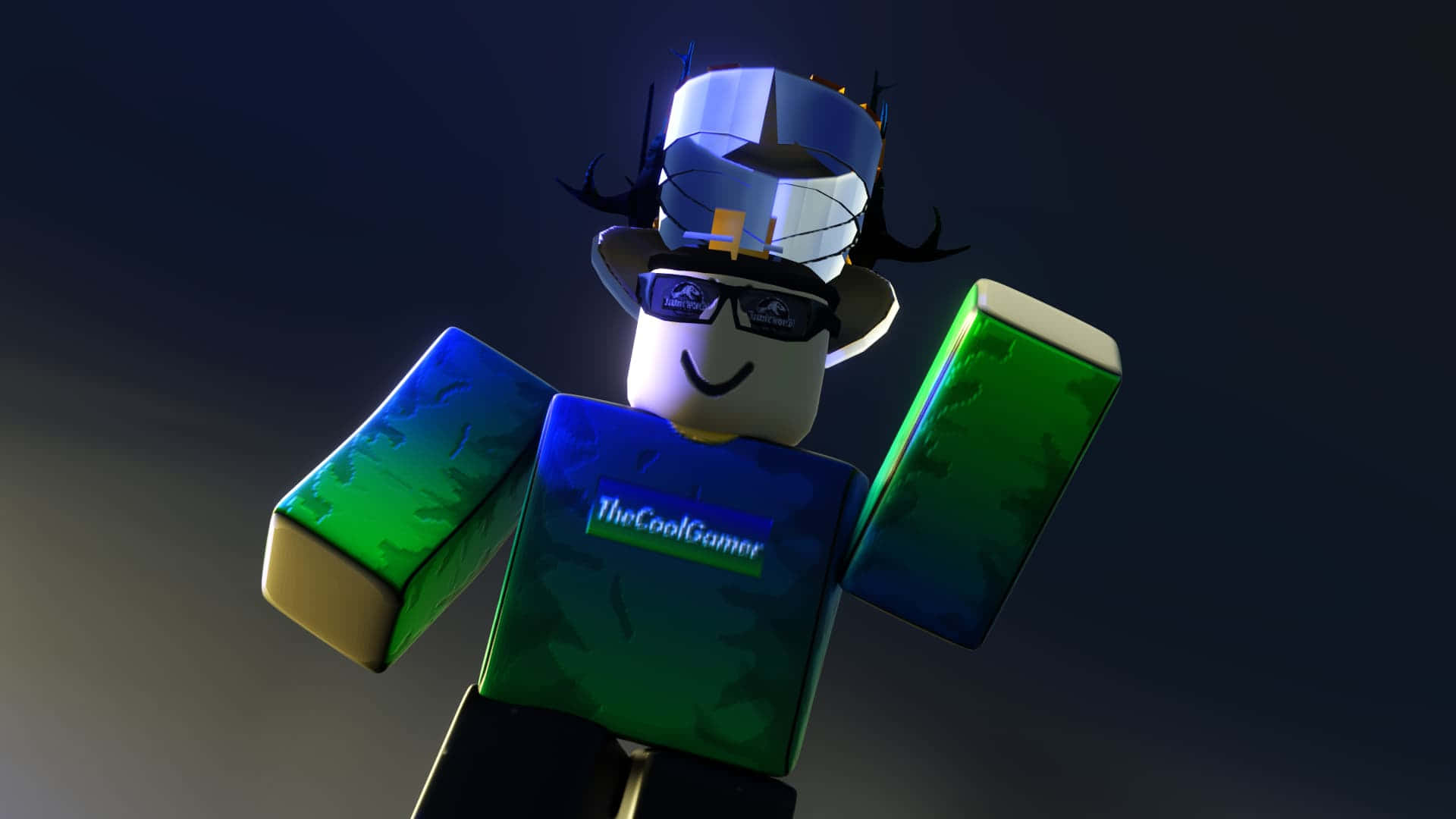
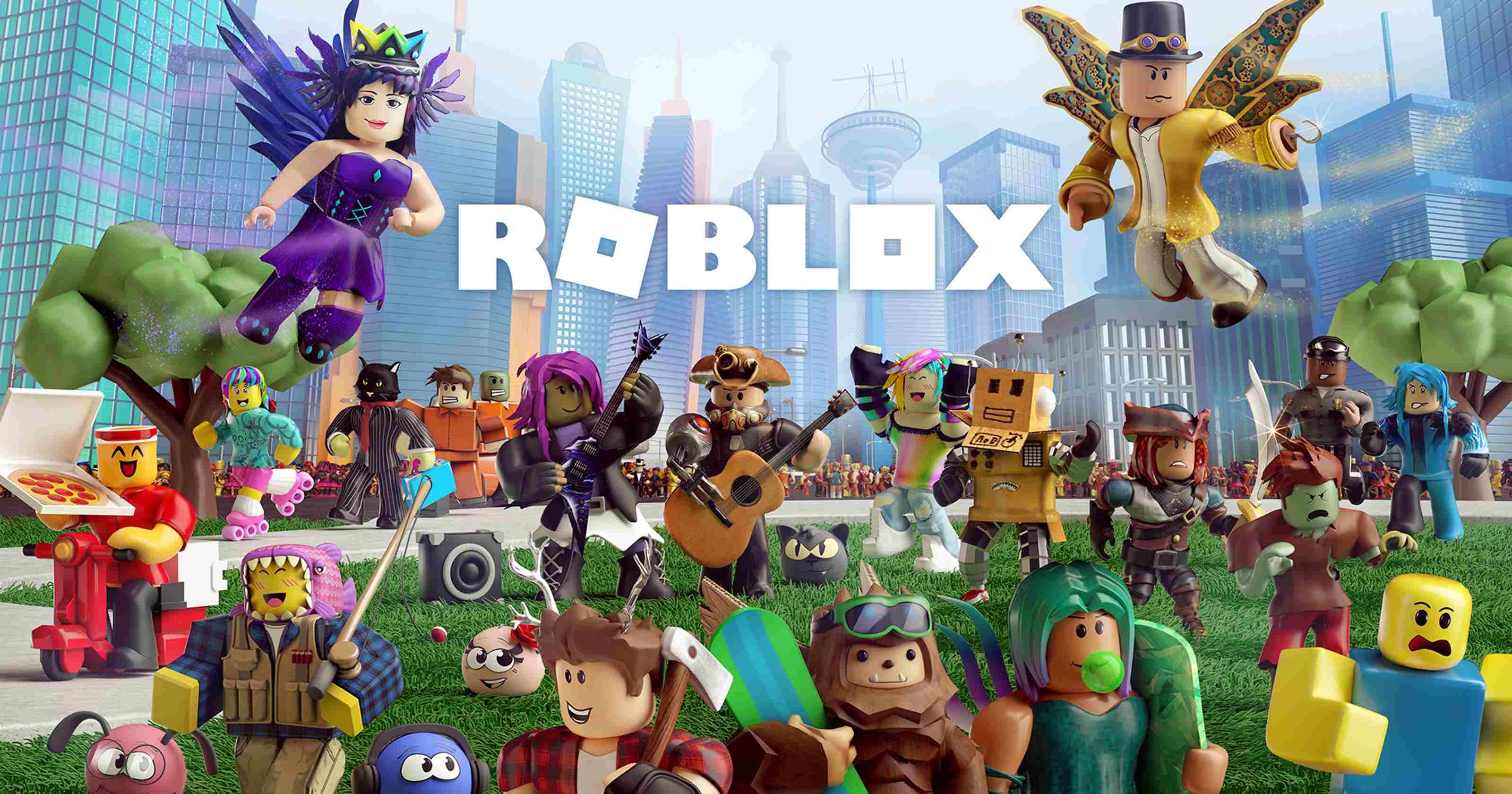

How To Add People Roblox Easily Your 2026 Guide . CHANGE YOUR ROBLOX BACKGROUND ROBLOX TUTORIAL YouTube . How To Create Stunning Roblox GFX Backrounds 2026 Guide Roblox Gfx 1920 X 1080 Background . Make A Roblox Wallpaper 85 Images 1271790 Make A Roblox 3200x1680 Ipad Pro . Roblox New Years 2026 Poster By SmashLeaker On DeviantArt Roblox New Years 2026 Poster By Smashleaker Dl7cn62 Fullview



2026 Wallpaper Roblox Roblox Room Decor Printable Roblox Characters Il Nwvd . Definitive Guide To Roblox 2026 TM 07169 AU 19 60 Football Heaven TM 07169 Definitive Guide To Roblox 2026 . Roblox Wallpapers Wallpaper Cave Wp1815434 . Roblox 2026 Logo REVEALED New Color New Look YouTube Maxres2 . How To Personalize Your Roblox Background YouTube


How To Add Wallpaper In Roblox Studio EASY YouTube . How To Make Your Own Roblox Background YouTube . How To Publish A Game On Roblox In 2026 Roblox YouTube . How To Change Roblox Background 2024 Change Your Roblox Theme For . How To Create Roblox BG With Stylish And Customize Your Experience Change Customize Roblox Background 3.webp

100 Roblox Desktop Wallpapers Wallpapers Com Roblox Game Collage . How To Create Stunning Roblox GFX Backrounds 2026 Guide Roblox Gfx . Make Your Own Roblox Wallpaper At Lydia Eddy Blog 1820005 . How To Create A Roblox Account In 2026 What You Need Roblox Studio Home . How To Make A Roblox Game With AI Complete 2026 Guide Image

HOW TO CREATE IMAGE FROM ROBLOX YouTube . Roblox In 2026 Play On Roblox NoFilter. Roblox Unveils Homepage Ad Format At CES 2026 Outlook Respawn Image 1200x630 2026 01 . Roblox Wallpapers 84 Images 1112771 New Roblox S 1920x1080 Mac . Roblox Wallpapers Wallpaper Cave Wp1815436
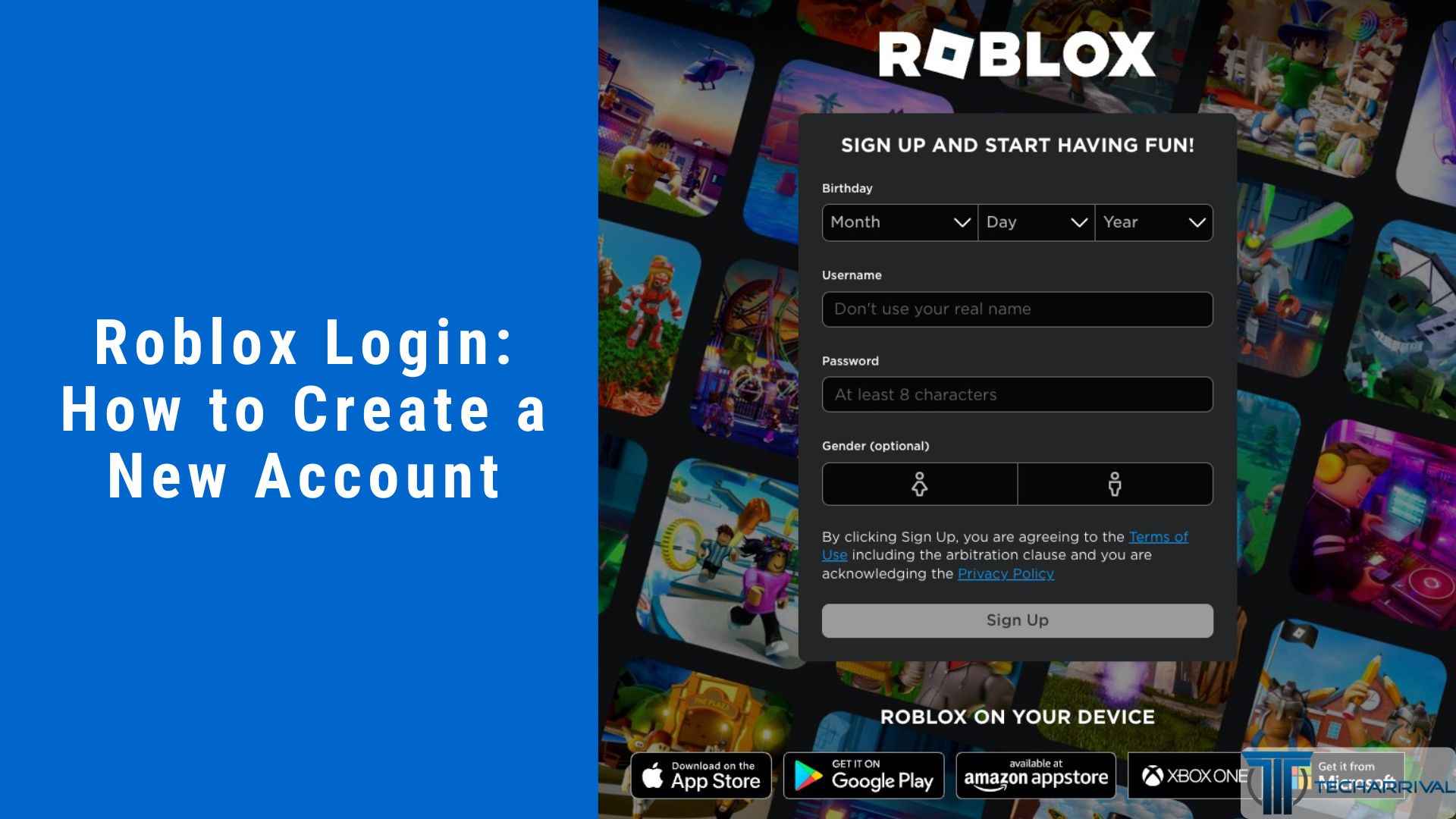

How To Create A Roblox Account In 2026 What You Need Roblox Login How To Create A New Account . Make A Roblox Wallpaper 85 Images 1271759 Beautiful Make A Roblox 3840x2160 . Roblox 2026 New Logo REVEAL First Look At The Future Shorts YouTube Oar2 . Make A Roblox Wallpaper 85 Images 1271813 Make A Roblox 1920x1080 For Iphone . 2026 Wallpaper Roblox Roblox Room Decor Printable Roblox Characters Il Tovi

Wandbilder Coole Roblox Roblox Desktop Wallpaper SYJAYD Cool Roblox Wallpapers . Make A Roblox Wallpaper 85 Images 1271773 Vertical Make A Roblox 1920x1080 Image . Roblox Desktop Wallpapers Wallpaper Cave Wp8455343 . 750 New Roblox Wallpapers 2026 FinetoShine Roblox Wallpaper 1 600x536 . How To Create Stunning Roblox GFX Backrounds 2026 Guide Roblox Gfx